> For the complete documentation index, see [llms.txt](https://magecomp.gitbook.io/shopify/llms.txt). Markdown versions of documentation pages are available by appending `.md` to page URLs; this page is available as [Markdown](https://magecomp.gitbook.io/shopify/apps/zox-zipcode-check/create-rule.md).
# Create Rule
**Create Rule to Manage Delivery by PIN Codes**
Easily control where your products can be delivered by creating rules based on PIN codes. Set estimated delivery times, return and exchange availability, and apply rules to single PIN codes, ranges, or bulk CSV uploads. Prioritize rules to ensure the most important settings are applied first, and choose whether they apply to all products, specific products, or specific collections.
**Step #1**
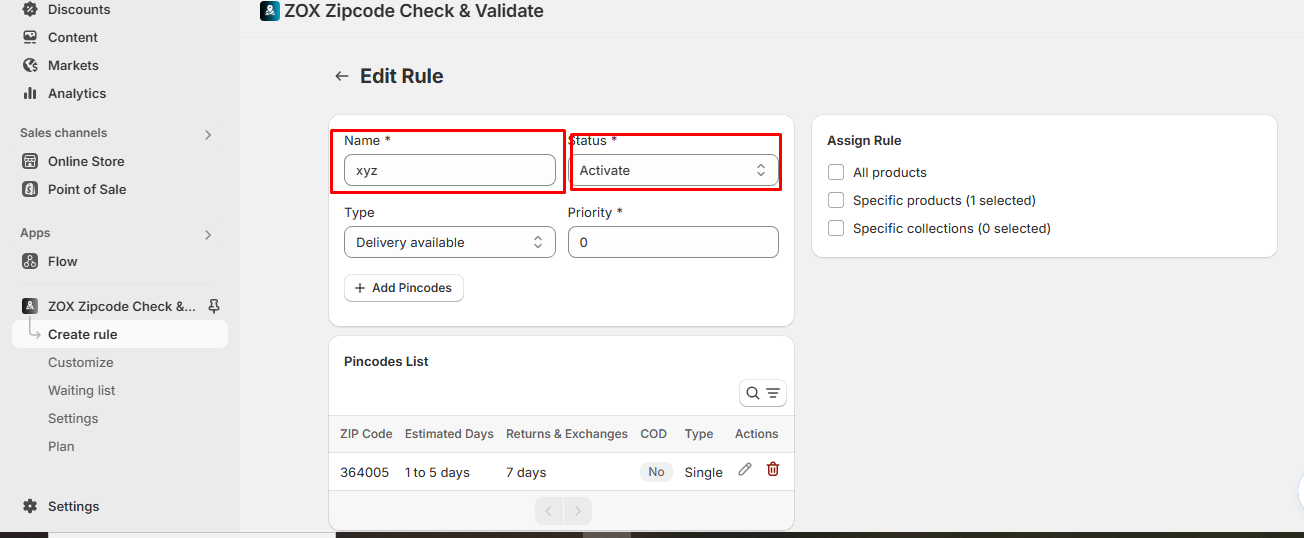
**Create a Rule**\
Go to your Shopify store backend:\
**Apps ➤ ZOX Zipcode Check ➤ Create Rule**
* Enter a **name** for your rule.
* Set the **status** (Active/Inactive).
#### Step #2
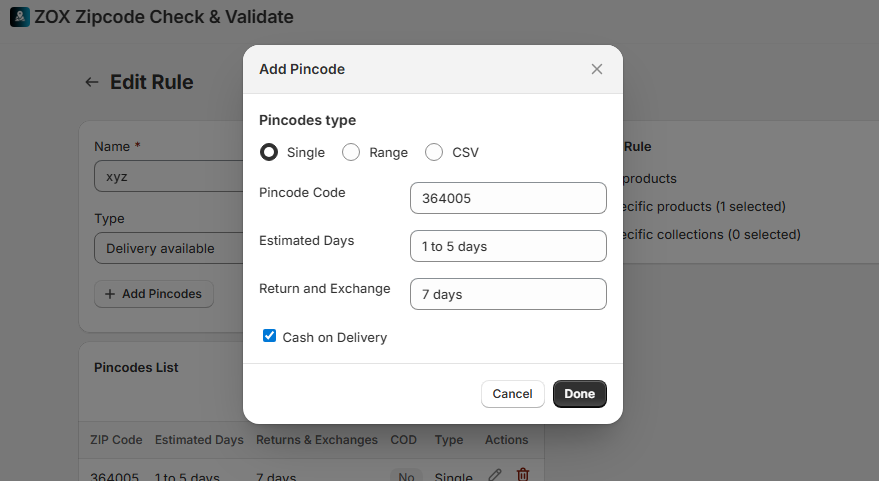
**Add PIN Codes**\
You can add PIN codes in three ways:
1. **Single PIN Code** – Enter a specific PIN code (e.g., 314005) and set **estimated delivery days**, **return**, and **exchange availability**.
2. **PIN Code Range** – Specify a range (e.g., 314001 to 314005) to apply the rule to multiple PIN codes at once.
3. **CSV Upload** – Upload a CSV file containing multiple PIN codes for bulk import.
#### Step #3
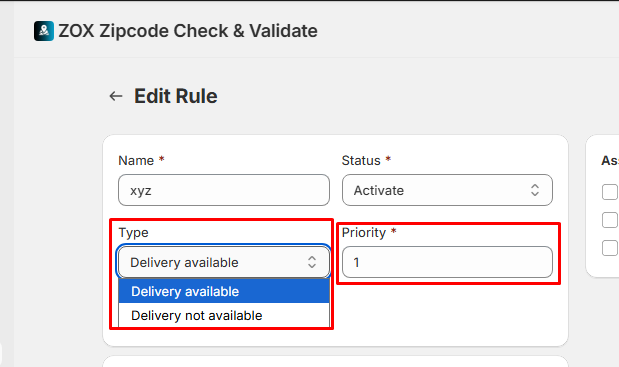
* Choose whether delivery should be **Available** or **Not Available** for the selected PIN codes.
* Assign a **priority** to this rule relative to your other rules.
**Step #4**
**Select Products or Collections**\
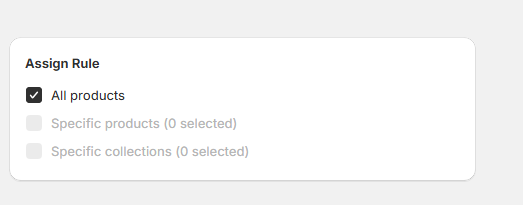
Choose where this rule should apply:
* **All Products** – Applies to every product in your store.
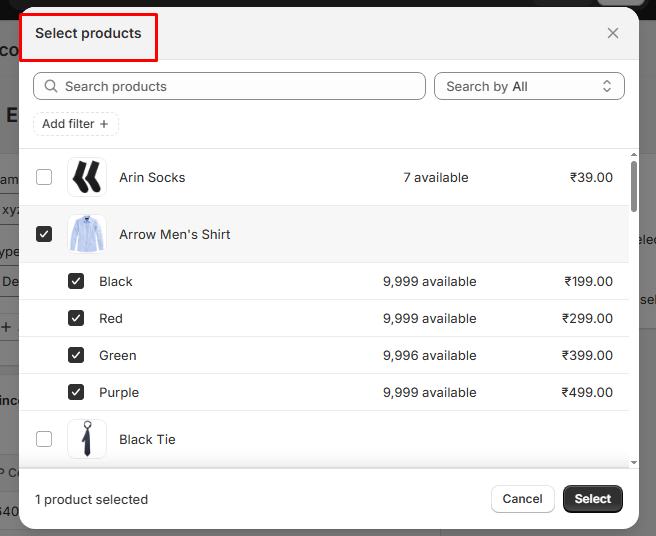
* **Specific Products** – Apply the rule to selected products.
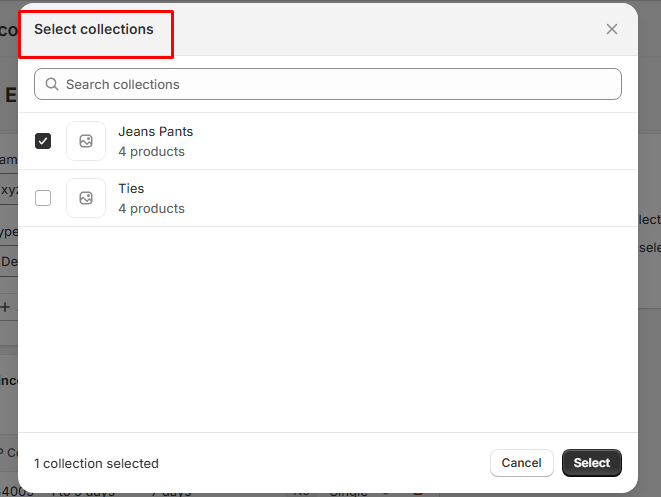
* **Specific Collections** – Apply the rule to entire collections.
* You can select an option as to which you want to apply the deliveries according to the pincodes - **products** or **collections** as per your choice.
**Step #5**
**Save and Manage Rules**\
Once created, the rule is applied automatically based on its priority. You can manage, edit, or delete rules anytime to keep delivery availability up to date.
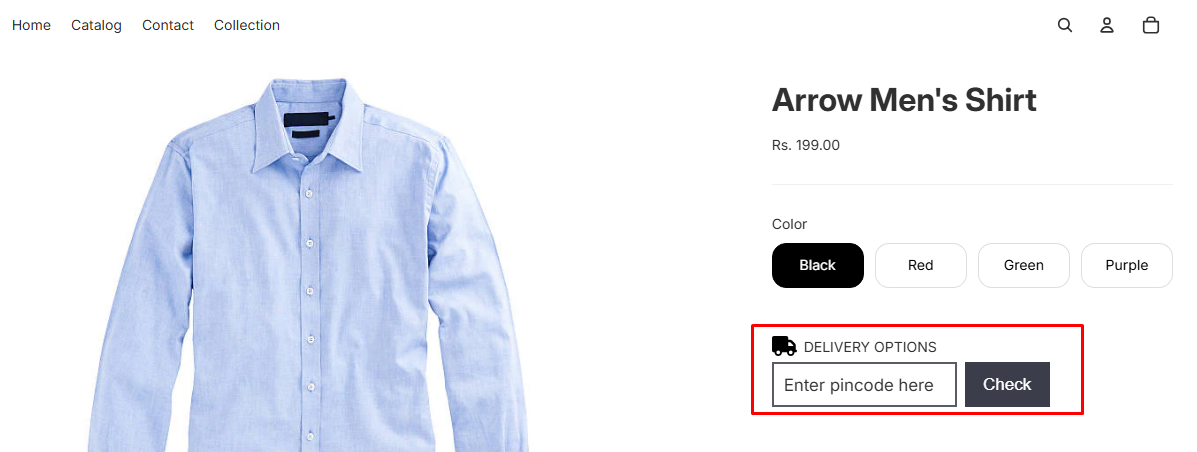
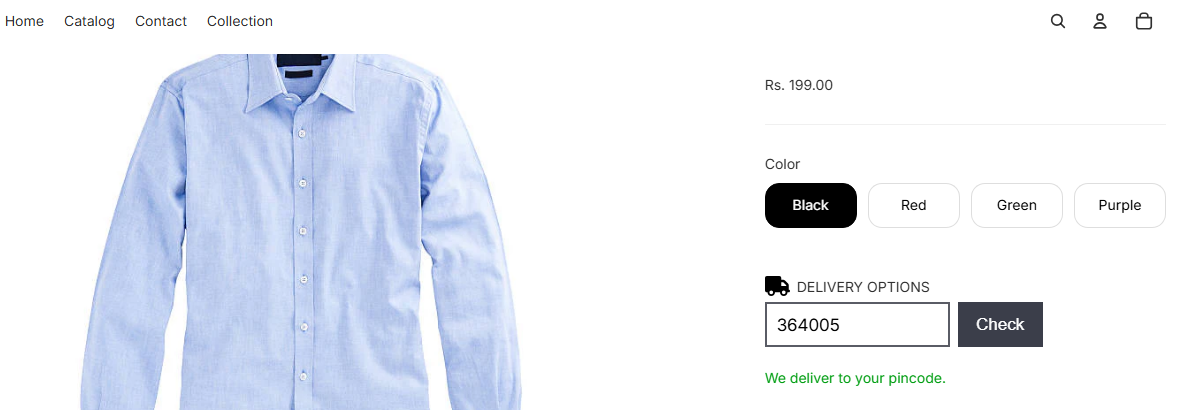
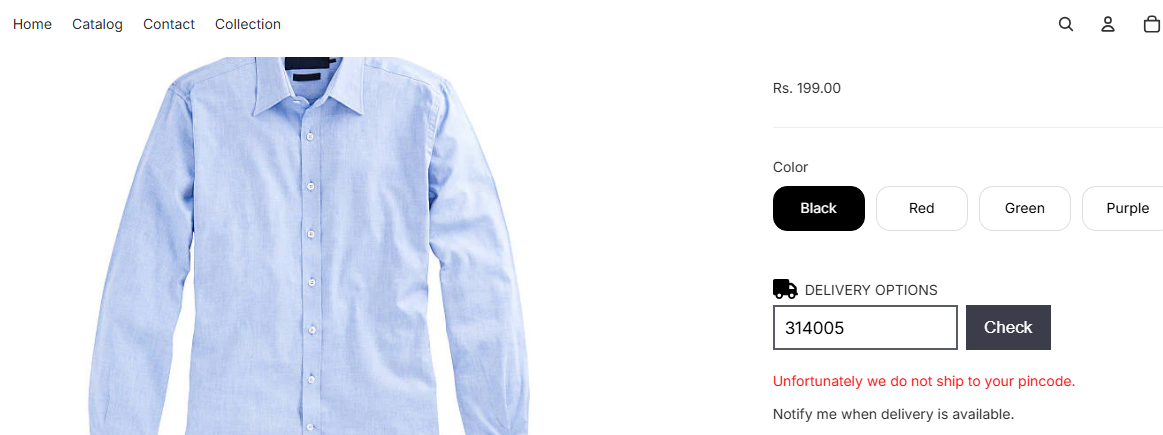
For example, if you select a **specific product** like *Arrow Shirt*, the rule will appear on the frontend like this. Enter a PIN code to instantly see whether delivery is available for that product.
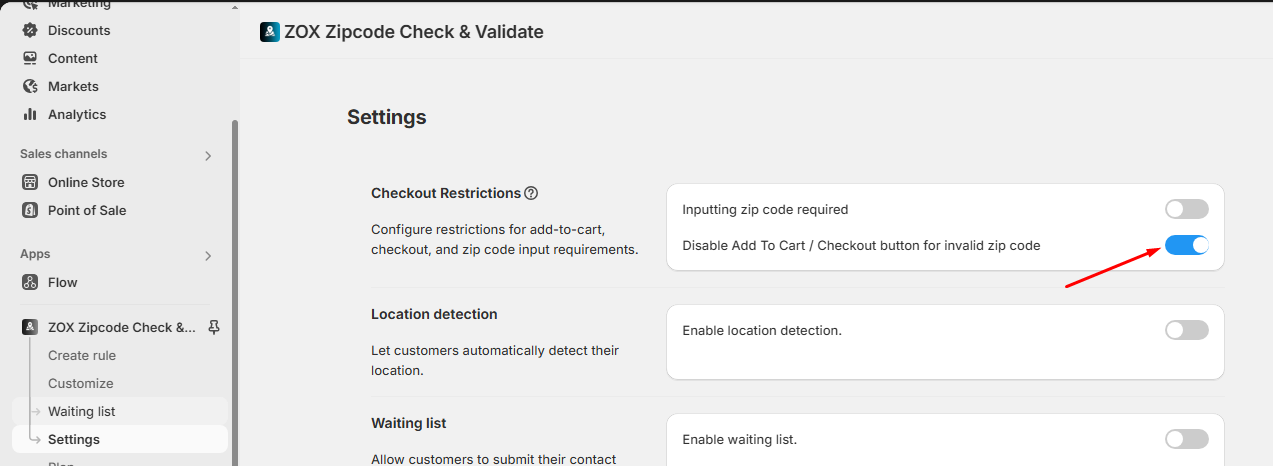
**Important:** Go to **Settings** and turn this option on to ensure customers cannot checkout if an incorrect PIN code is entered.
#### Export All Pincodes
You can now easily export all added pincodes from the app in just one click.
**How it works:**
* Navigate to the Create rule section in the app
* Click on the **Export** button
* All configured pincodes will be downloaded in a file for your reference