# WhatsApp Chat Button
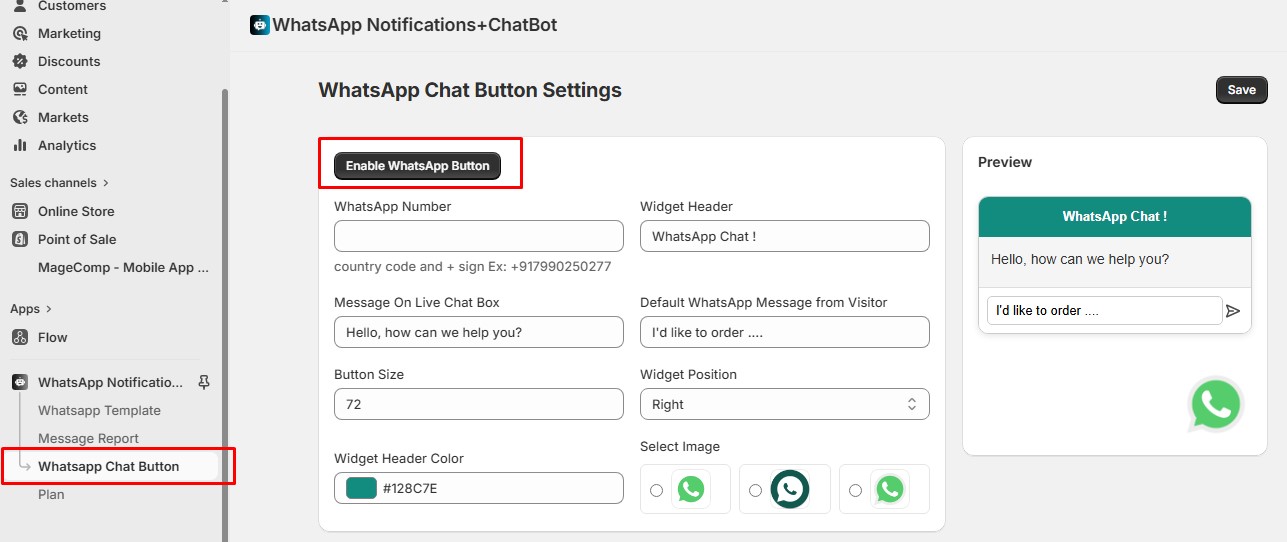
This is the field where you can **enable the WhatsApp Chat button** and **customize the button** according to your requirements.
**Step #1**
Select the **Enable WhatsApp** button.
**Step #2**
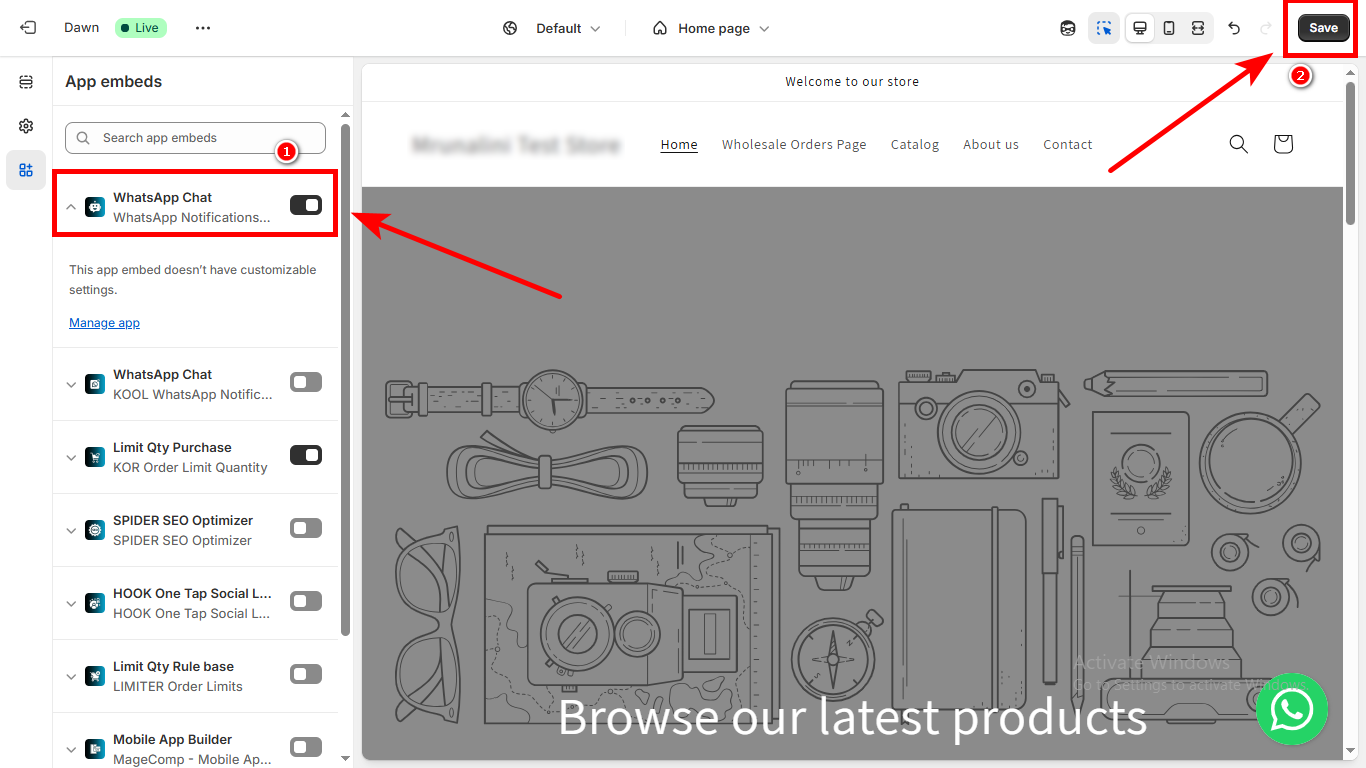
After selecting the button, you will be redirected to your store's theme page to embed the app.
Once you are done, **save** your configuration and proceed.
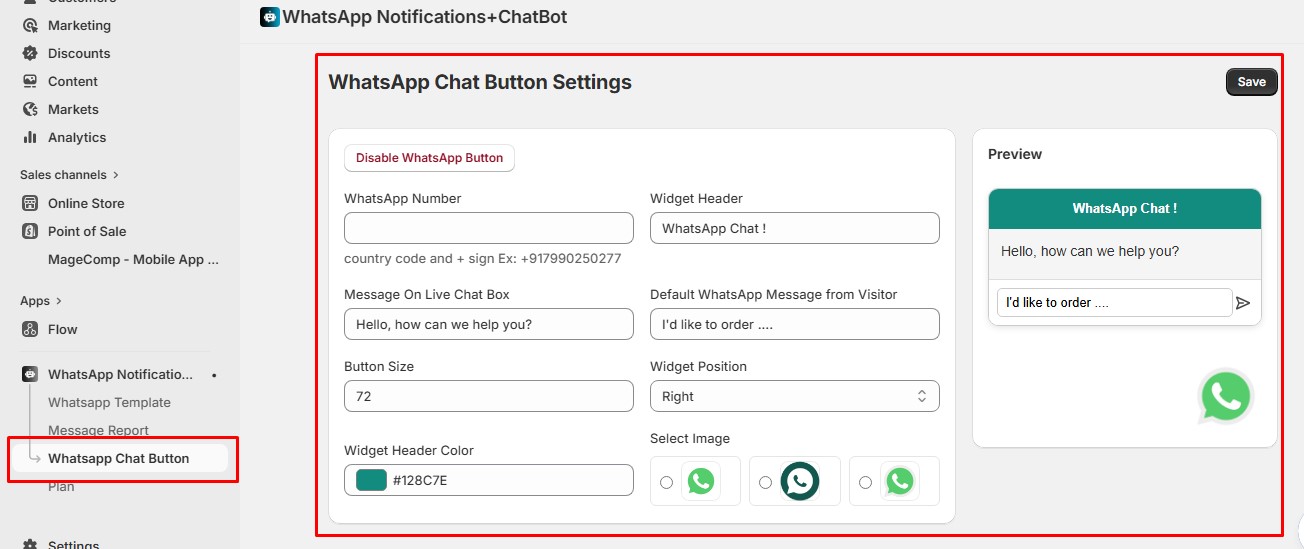
Head back to the app's **WhatsApp Chat Button** field.
* **WhatsApp Number -** Enter the WhatsApp number that you want to configure for the button so that when a customer tries to contact your support team by clicking on this chat button, a query will be received on the number you entered.
* **Show Message On Live Chat Box -** Configure the message that you want to show your customers when they choose to contact this chatbot.
* **Default WhatsApp Message from the visitor -** Configure the message that you want to provide for your customer's queries, so that they do not have to write an entire message for a small query.
* **Button Size -** Select the button size of your WhatsApp chat button.
* **Widget Header -** Set the widget header that will be visible above the chat button.
* **Widget Position -** Choose where you want to place this chat button.
* **Widget Header Color -** Choose the color of your WhatsApp Chatbot.
* **Select image -** Select the image that you want to have for your chat button.
* **Widget Status -** Enable the status of the widget so that the button will be visible on your store for your customers.