# Products

This is the field that allows you to hide your product prices. For this, you need to follow a few easy steps:

<figure><img src="https://922942541-files.gitbook.io/~/files/v0/b/gitbook-x-prod.appspot.com/o/spaces%2FIGRcMuVZCEGNibOl1OmW%2Fuploads%2FgpSFJ4O6MQ8inLOABNfe%2FRFQ%20products.png?alt=media&#x26;token=2c15ad12-6fb1-488a-8438-03c06e6853c4" alt=""><figcaption></figcaption></figure>

<mark style="color:blue;">**Step #1**</mark>

First, decide as to which you want to apply the hide price functionality;

<figure><img src="https://922942541-files.gitbook.io/~/files/v0/b/gitbook-x-prod.appspot.com/o/spaces%2FIGRcMuVZCEGNibOl1OmW%2Fuploads%2Fy4UgFq9qwu0KgbyVzF8i%2Fimage.png?alt=media&#x26;token=3c928759-d223-45f6-bfc7-b83b3255e0c4" alt=""><figcaption></figcaption></figure>

* **On all products -** This option will apply the feature to all products listed on your Shopify store.
* **On specific products -** This option will allow you to apply the app feature on specific products only that you have selected.
* **Set Conditions -** This option allows you to set conditions for applying the functionality when the conditions are met.

<figure><img src="https://922942541-files.gitbook.io/~/files/v0/b/gitbook-x-prod.appspot.com/o/spaces%2FIGRcMuVZCEGNibOl1OmW%2Fuploads%2F9IjFfYb8QSXqOiaOBHWN%2Fset%20condition%20(RFQ%20products).png?alt=media&#x26;token=dd3df622-e2e6-42a3-afc6-2fc23ffaca00" alt=""><figcaption></figcaption></figure>

<mark style="color:blue;">**Step #2**</mark>

If you have selected the option of displaying RFQ button on - **On specific products**, then you must select the **Add products** button.

<figure><img src="https://922942541-files.gitbook.io/~/files/v0/b/gitbook-x-prod.appspot.com/o/spaces%2FIGRcMuVZCEGNibOl1OmW%2Fuploads%2Fl1UURX9AaWW8s4P9eQFE%2Fadd%20products%20button.png?alt=media&#x26;token=2ba66825-4303-4b89-82de-c0a74fb4fd32" alt=""><figcaption></figcaption></figure>

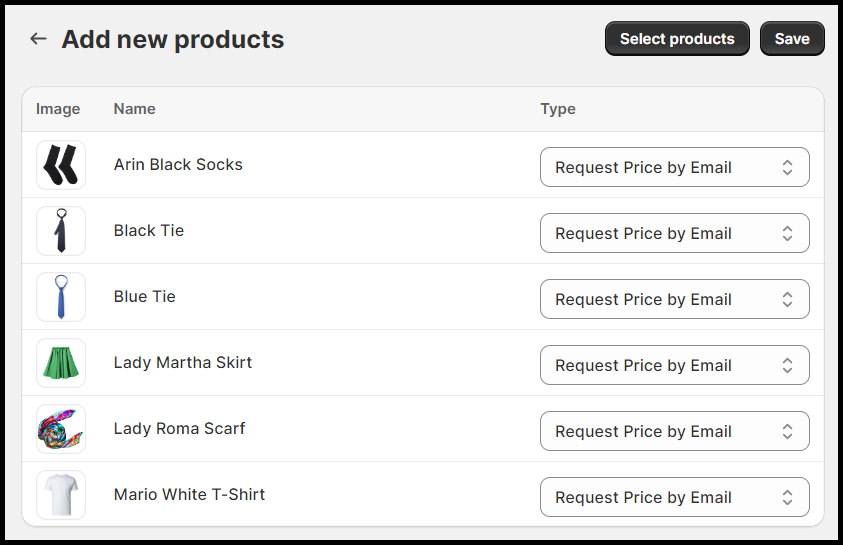
Click on **Select Products,** and add the products to the list whose prices you want to hide.

<figure><img src="https://922942541-files.gitbook.io/~/files/v0/b/gitbook-x-prod.appspot.com/o/spaces%2FIGRcMuVZCEGNibOl1OmW%2Fuploads%2FGPUPOHt6wwpOjxvSd6us%2Fadd%20new%20products%20list.png?alt=media&#x26;token=1f9f6639-cace-4c1b-a23e-09aa0f643da8" alt=""><figcaption></figcaption></figure>

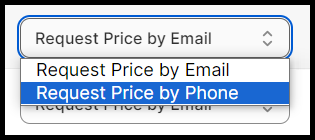
Here, you are also provided with options: whether you want to let your customers **request the price by email** or **phone**.

<figure><img src="https://922942541-files.gitbook.io/~/files/v0/b/gitbook-x-prod.appspot.com/o/spaces%2FIGRcMuVZCEGNibOl1OmW%2Fuploads%2FJ3cAw8qK1fVQE0IRgWCW%2Ftwo%20options%20-%20email%20or%20phone.png?alt=media&#x26;token=a4a2f76c-53b4-4e78-a45e-fdc8f7f7ef61" alt=""><figcaption></figcaption></figure>

Once you are done with adding the products to the list, you can **Save** it.

You can review all the added products on the **Products** page. You can also check when you added the product to the list and also edit the configurations anytime.

<figure><img src="https://922942541-files.gitbook.io/~/files/v0/b/gitbook-x-prod.appspot.com/o/spaces%2FIGRcMuVZCEGNibOl1OmW%2Fuploads%2F25njFDlMNkaqpz2X8fQY%2Fproduct%20list.png?alt=media&#x26;token=2bd82a4e-5585-49a2-867e-2f02a23b98bd" alt=""><figcaption></figcaption></figure>

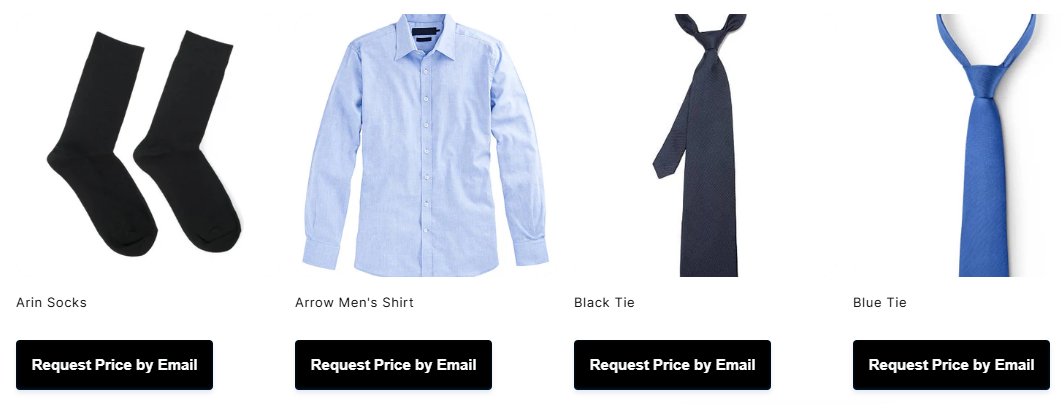
**Frontend Result**

<figure><img src="https://922942541-files.gitbook.io/~/files/v0/b/gitbook-x-prod.appspot.com/o/spaces%2FIGRcMuVZCEGNibOl1OmW%2Fuploads%2FlYqIE7klrMc1YBbMOROc%2Fimage.png?alt=media&#x26;token=a05f227d-ece1-4956-838c-9368a3c07bc0" alt=""><figcaption></figcaption></figure>