> For the complete documentation index, see [llms.txt](https://magecomp.gitbook.io/shopify/llms.txt). Markdown versions of documentation pages are available by appending `.md` to page URLs; this page is available as [Markdown](https://magecomp.gitbook.io/shopify/apps/rfq-hide-price.md).
# RFQ Hide Price
Retrieve query requests and process them using shoppers' preferred communication methods, then convert quotes to orders.
[**RFQ Hide Price**](https://apps.shopify.com/rfq-request-quote-hide-price) is a Shopify app developed by MageComp for online store admins who want to keep their pricing details hidden from customers on their live store.
This feature encourages customers to request the product price through a call or email.
With this app, admins can enable the hiding price feature for individual products and product collections."
### Language Translation & Quick Start
The **Language Translation** and **Quick Start** features improve the onboarding experience by allowing merchants to use the app in their preferred language and follow a guided setup process to configure the app quickly.
## Language Translation
The app now supports multiple languages, making it easier for merchants to configure and use the app in their preferred language.
### How to Change the App Language
#### Step 1: Open the App
From your Shopify Admin, navigate to **Apps** → **RFQ Request Quote & Hide Price**.
#### Step 2: Select Your Preferred Language
Click the **Language** dropdown located in the top-right corner of the app and choose your preferred language from the available list.
The app interface will be displayed in the selected language.
### Supported Languages
The app currently supports multiple languages, including:
* **English (Default)**
* **Chinese (Simplified)**
* **Chinese (Traditional)**
* **Czech**
* **Danish**
* **Dutch**
* **Finnish**
* **French**
* **German**
* **talian**
* **Japanese**
* **Korean**
* **Norwegian (Bokmål)**
* **Polish**
* **Portuguese**
* **Spanish**
* **Swedish**
* **Turkish**
* **Hindi**
* **Filipino**
### Dashboard Page Design Changes
The RFQ Request Quote & Hide Price dashboard has been updated with a more organized layout to make important app information and features easier to access.
#### Updated Dashboard
After opening **Apps → RFQ Request Quote & Hide Price**, you will see the updated dashboard.
The dashboard is divided into several sections:
#### **1. App Status & Overview**
At the top of the dashboard, you can view:
* **App Status** – Check whether the app is currently active.
* **Products** – View the number of products configured for RFQ.
* **Collections** – View the number of collections configured for RFQ.
* **Form Submission** – View the total number of submitted quote forms.
* **Language** – Select the preferred dashboard language.
#### **2. Add Block to Theme**
The dashboard provides quick instructions for adding the RFQ button to your Shopify theme.
You can:
* Integrate a **button display block** on the product page to show the RFQ button.
* Embed the **app block** on the collection page and home page.
#### **3. Ready-to-Display Products**
This section allows you to quickly configure products for the RFQ functionality.
Click **Add products** to select the products that should display the Request for Quote option.
#### **4. Other Features**
The dashboard provides quick access to important RFQ features, including:
* **Exclude Products** – Exclude selected products from quote requests.
* **Quote Deadline & Login Before Quote** – Set a quote deadline and require customers to log in before submitting a quote.
* **Offer Price & Automatic Quote** – Configure offer prices and automatic quote-related options.
#### **5. Quote Overview**
The **Quote Overview** section provides a quick summary of quote activity for the last 30 days.
You can view the number of quotes in different statuses:
* **Pending**
* **Approved**
* **Rejected**
* **Expired**
* **Draft Orders**
Click **View analytics** to access more detailed quote information.
#### **6. Resources**
The dashboard also provides quick-access resources to help you manage the app:
* **App Guideline** – Learn how to create and display a quote form on your store.
* **Contact Email** – Contact the support team through email.
* **WhatsApp** – Get assistance through WhatsApp.
* **Developer Support** – Contact the developer support team for technical assistance.
### Recommended Apps
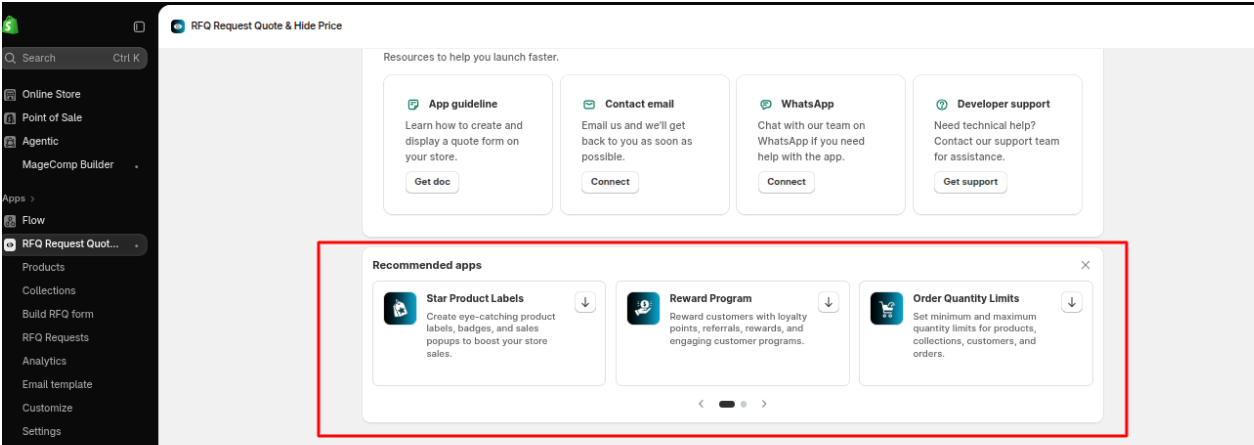
A **Recommended Apps** section has been added below the Resources section, containing app recommendation cards:
1. **Star Product Labels**
* Create eye-catching product labels, badges, and sales popups to boost your store sales.
* Download/install action icon on the right.
2. **Reward Program**
* Reward customers with loyalty points, referrals, rewards, and engaging customer programs.
* Download/install action icon on the right.
3. **Order Quantity Limits**
* Set minimum and maximum quantity limits for products, collections, customers, and orders.
* Download/install action icon on the right.
#### Additional UI
* Section title: **Recommended apps**
* Each app is displayed in an individual card.
* Each card contains the **original app icon, app name, description, and action/download button**.
* A **close (×) icon** is available at the top-right of the Recommended Apps section.
* The existing **Resources** section remains above it.
* Bottom navigation includes **Chat with us | Read our documentation**.
* A floating chat button is visible at the bottom-left.
So, if this is for your **dashboard design-change documentation/task description**, the proper wording would be:
> **Dashboard Page – Recommended Apps Section**\
> Added a new **Recommended Apps** section to the dashboard below the Resources section. The section displays recommended MageComp apps in individual cards, including the app icon, app name, short description, and an action button. Users can close the recommendation section using the close icon provided in the top-right corner.
> **Note:**
>
> * The selected language changes the app interface only and does not automatically translate your storefront content.
> * The Quick Start checklist is designed to help merchants complete the essential app setup. Progress is updated automatically as each configuration step is completed.
#### Footer Social Icons & Recommended Apps
Added **social media icons to the app footer across all pages**, allowing customers to easily contact or connect with the merchant through their preferred social media channels.
This makes it easier for customers to reach the merchant from any page of the app.
#### Recommended Apps
Updated the **Recommended Apps** section to showcase other relevant MageComp apps that may help merchants enhance their store.
The section displays recommended apps with a short description and an option to install or explore each app.
**Example:**\
As shown in the screenshot, the Recommended Apps section can display apps such as:
* **Star Product Labels** – Add labels, badges, and sales popups to products.
* **Reward Program** – Create loyalty points, referrals, and rewards.
* **Order Quantity Limits** – Set minimum and maximum quantity limits for products, collections, customers, and orders.
The Recommended Apps section can also be dismissed using the **X** icon.