> For the complete documentation index, see [llms.txt](https://magecomp.gitbook.io/shopify/llms.txt). Markdown versions of documentation pages are available by appending `.md` to page URLs; this page is available as [Markdown](https://magecomp.gitbook.io/shopify/apps/quo-volume-discount-tier-price/total-quantiy-count.md).
# Total Quantiy Count
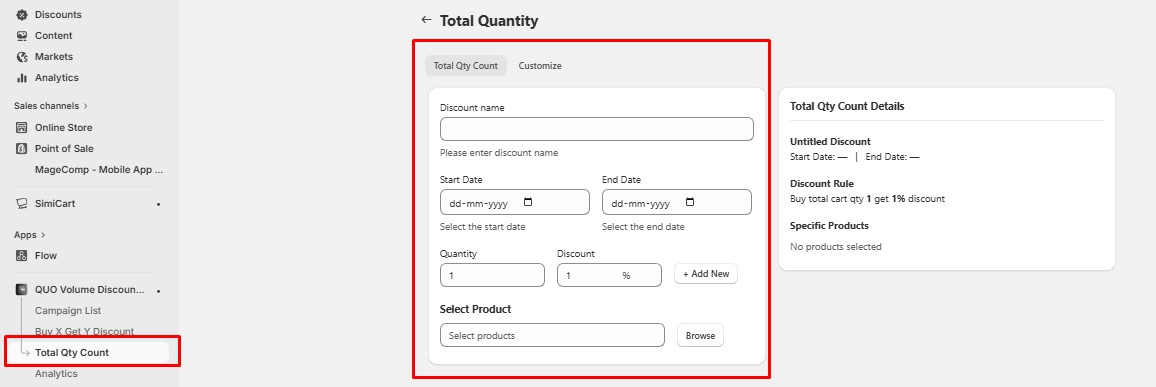
Total Quantity Count allows you to apply a discount to specific products based on the total quantity of items purchased across the entire cart.
The quantity condition is calculated using **all products in the cart**, but the **discount is applied only to the selected product(s)**.
#### How It Works
1. Select one or more products in the **Select Product** section.
2. Set a **minimum quantity** (for example, 4).
3. When a customer’s **total cart quantity** reaches the set quantity, the discount is applied to the **selected product(s),** even if the quantity comes from other products.
#### Example
* You select **Product A** as the discounted product.
* You set **Quantity = 4**.
* A customer adds the following to the cart:
* Product B × 2
* Product C × 2
**Total quantity in cart = 4**
Even though **Product A is not part of the quantity count**, the discount will still be **applied to Product A** because the total cart quantity condition is met.
#### Key Points
* Quantity is calculated from **all products in the cart**
* Discount is applied **only to selected products**
* Helps promote specific products while encouraging larger carts
#### Best Use Case
* Offer discounts on **featured or high-margin products**
* Encourage customers to **add more items to their cart**
* Create bundle-style promotions without restricting product selection
#### **Customize – Total Cart Quantity Discount**
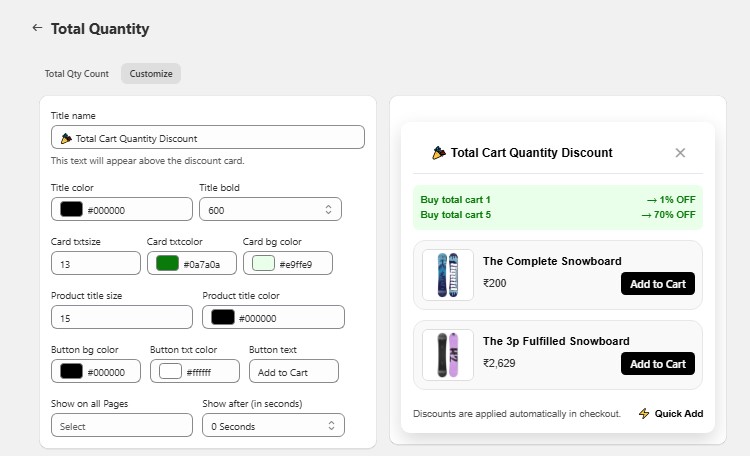
This section lets you **customize how the Total Cart Quantity Discount card looks and appears on your store**.
You can:
* Set the **title text**, color, and font weight
* Adjust **text size and colors** for the discount card
* Customize **product title and Add to Cart button** colors and text
* Choose whether to **show the card on all pages**
* Set a **delay time** for when the card appears after page load
The discount card displays **quantity-based offers** (for example, buy more items to get higher discounts) and helps encourage customers to add more products to their cart.