> For the complete documentation index, see [llms.txt](https://magecomp.gitbook.io/shopify/llms.txt). Markdown versions of documentation pages are available by appending `.md` to page URLs; this page is available as [Markdown](https://magecomp.gitbook.io/shopify/apps/quo-volume-discount-tier-price/email-template.md).
# Email Template
Once you have created a discount code, you can use the Email Template section to manage how the discount is communicated to customers.
**What You Can Do**
* Create and manage email templates for **discount code–based campaigns**
* Automatically include the **applied discount code** in customer emails
* Ensure **consistent messaging** for promotions and offers
#### How to Use
1. After creating a discount code, go to **Email Template**.
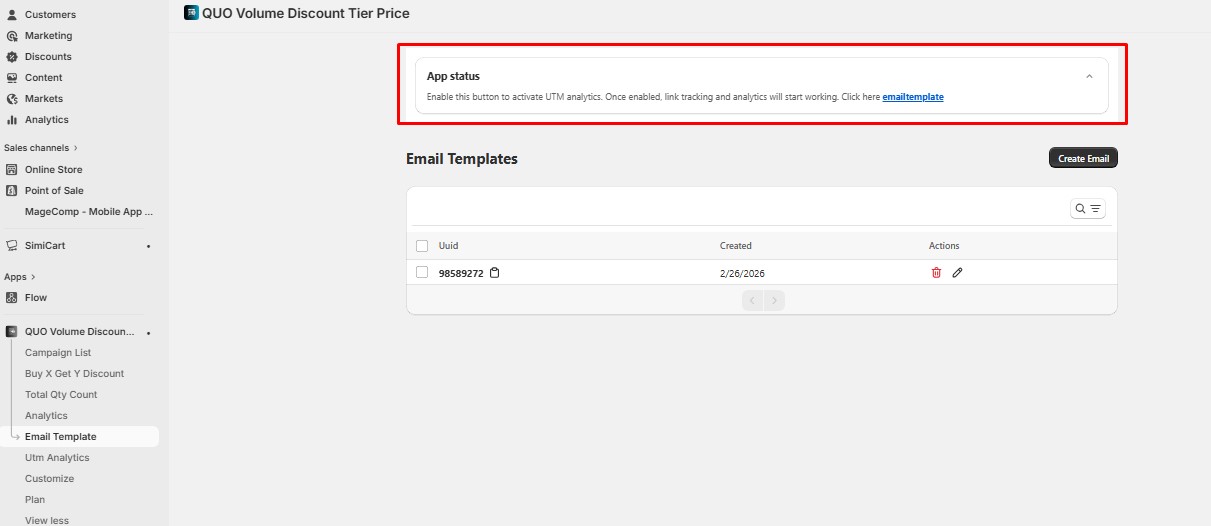
2. Enable **App Status**
3. Click **Add Email Template**.
4. Customize the email content as needed.
5. Save the template.
### Flow App Template for Discount Emails
The **Flow App Template** allows you to **automate discount code email delivery** using a predefined workflow.
Once a discount code is created, you can select a Flow template apart from the default app template and activate the workflow. After activation, the system automatically sends an email to the customer containing the discount code.
To ensure the workflow runs for the **correct discount and orders**, a **UUID** must be added in the Flow app.
The discount code used in the campaign will be **automatically included in the email** sent to the customer.
### Set Up Flow App Template Using UUID
Follow the steps below to configure the Flow app template for a specific discount code:
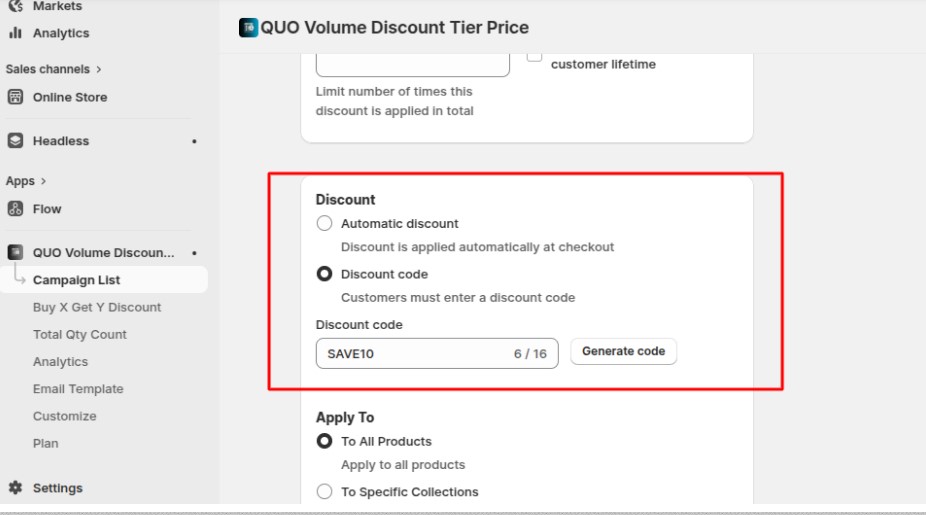
1. **Create a discount code** in the app and copy it.
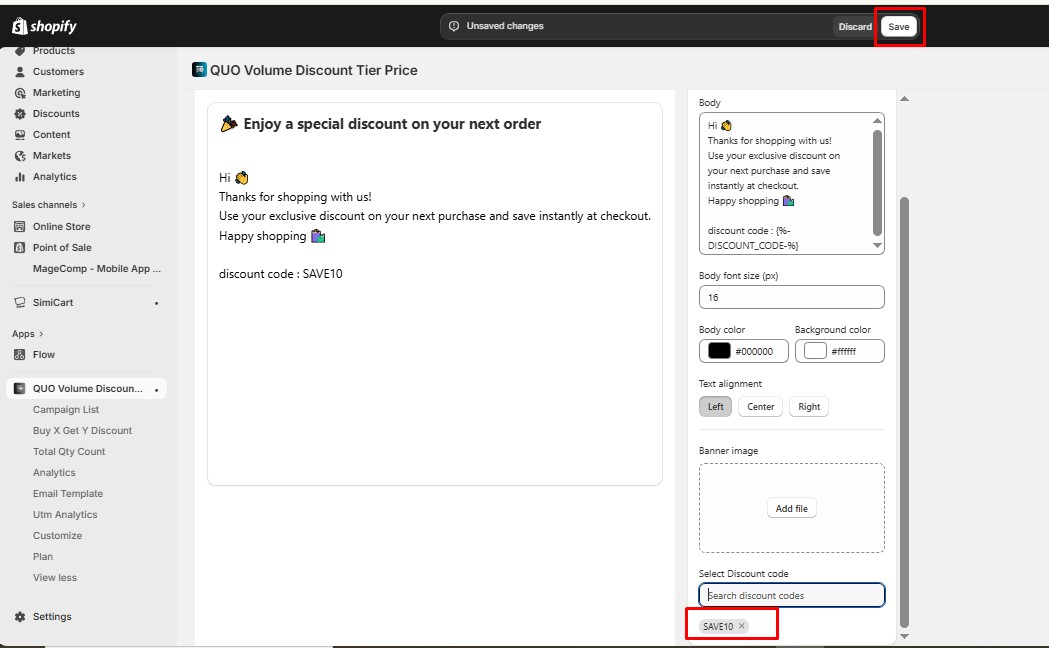
2. Go to **Email Template → Create Email**.
* Scroll down to **Select Discount Code**
* Paste the copied discount code
* Click **Save**
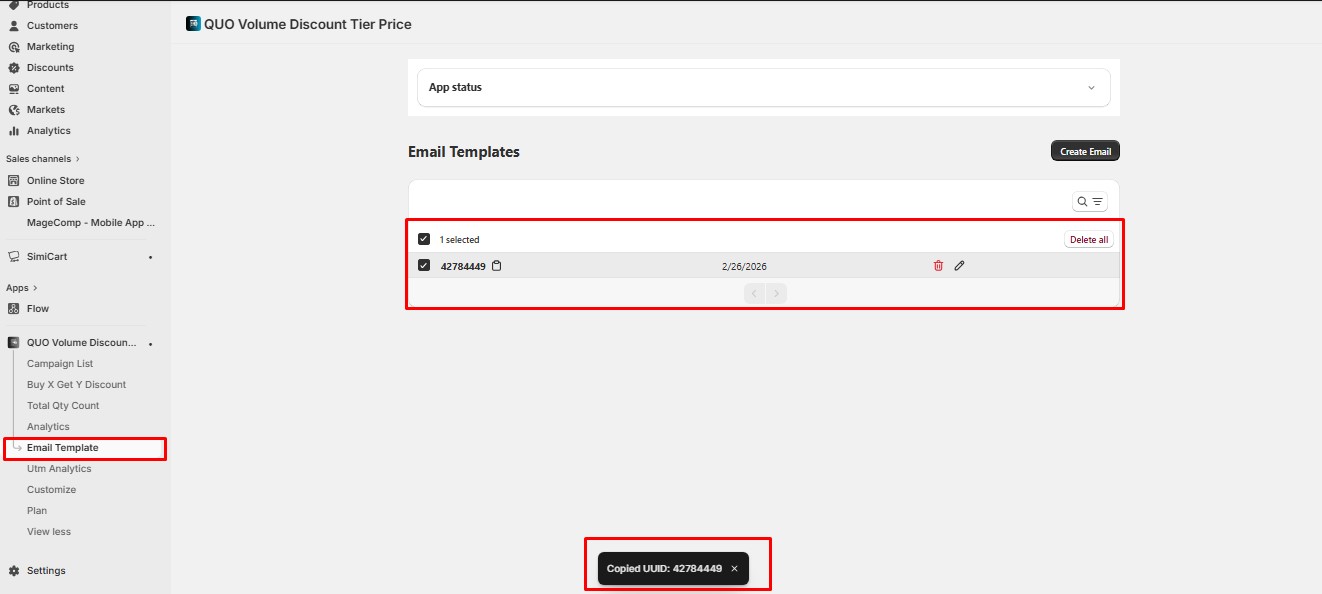
3. Return to the **Email Template** list page.
* You will see a **UUID** generated for the email template
* Copy the UUID
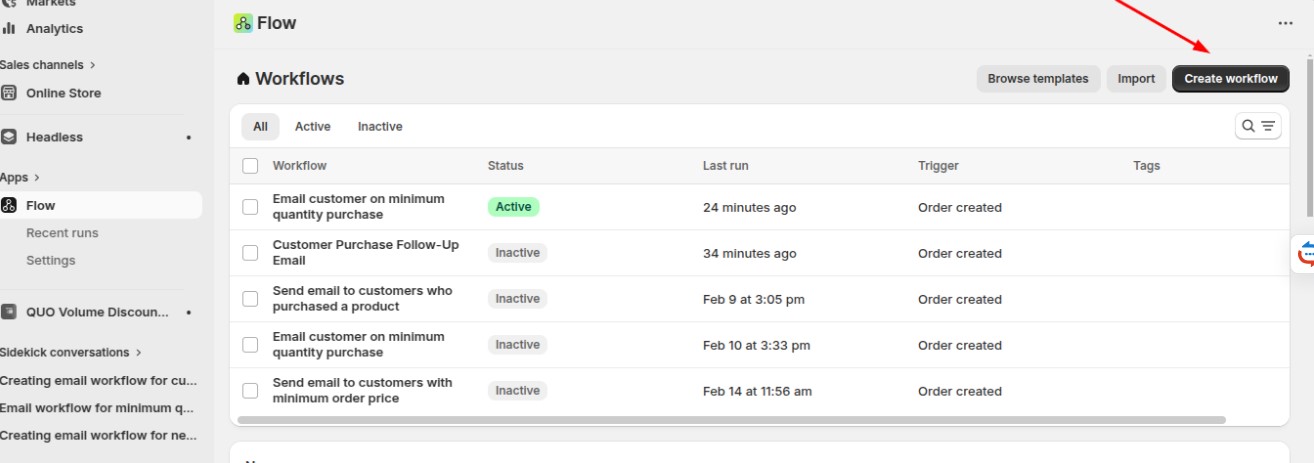
4. Open the **Flow app** and click **Create Workflow**.
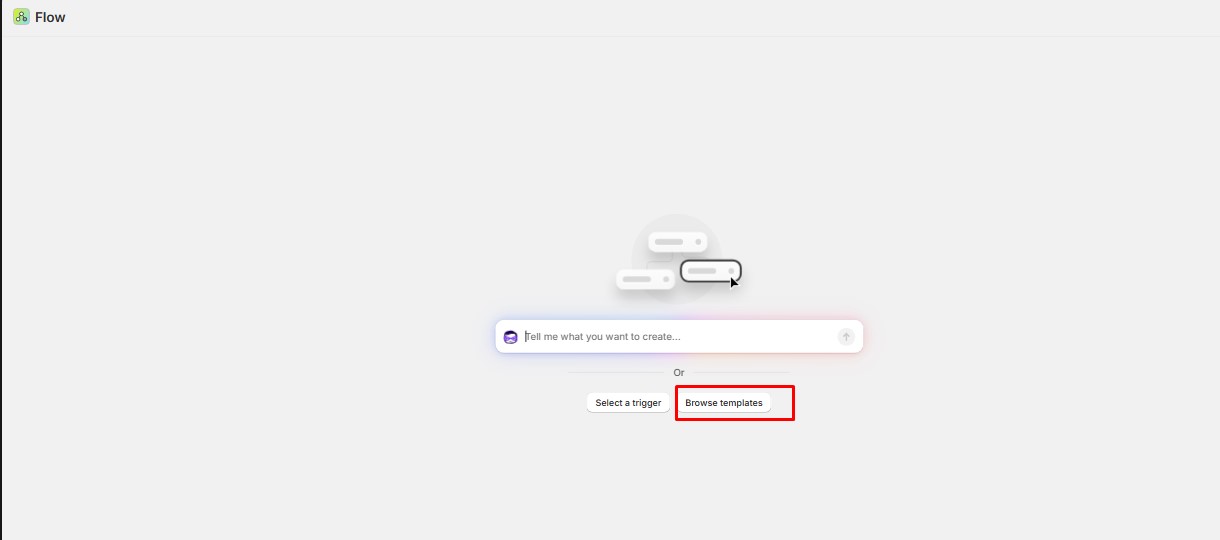
5. Select **Browse Templates**.
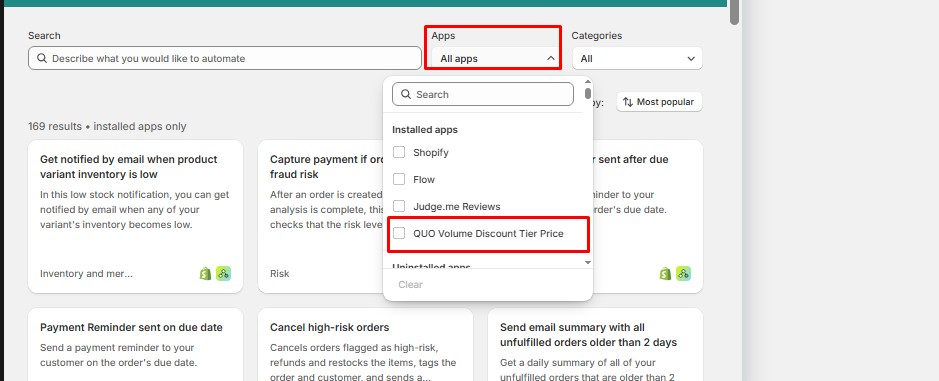
6. From the **All Apps** section, choose **QUO Volume Discount Tier Price**.
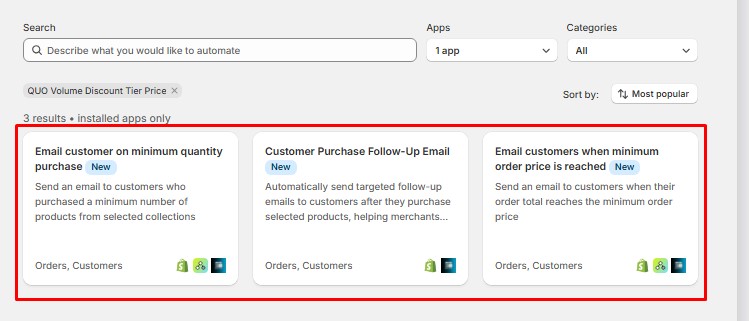
7. You will see **three available templates**.
* Select the template that best fits your order or discount requirement.
8. Click **Install Template** from the right side.
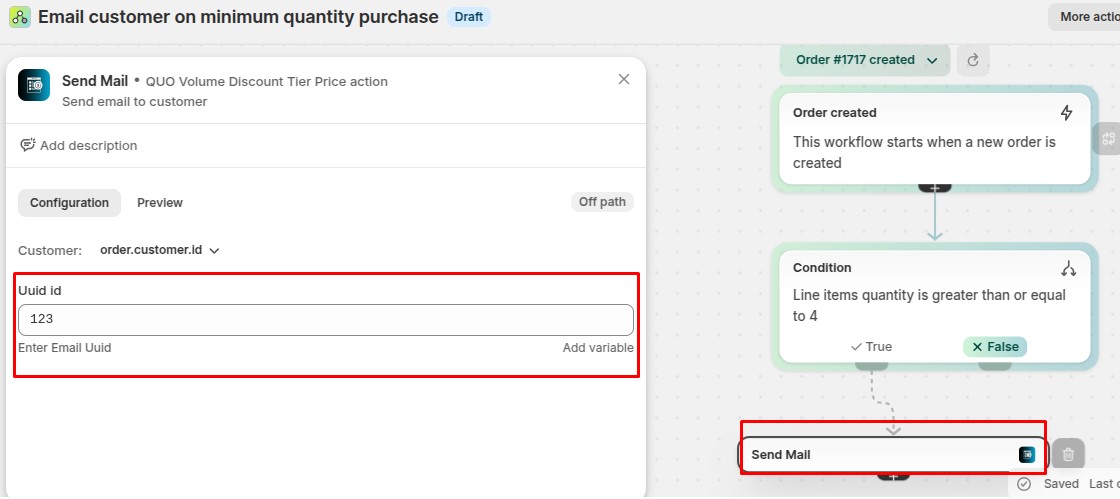
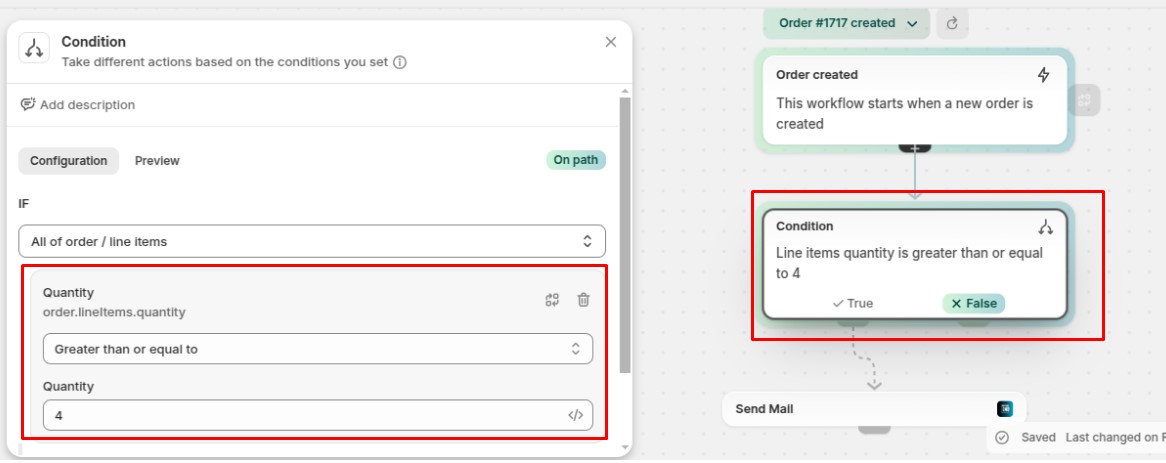
#### 1. Email Customer on Minimum Quantity Purchase
**Purpose:**\
Sends an email when a customer purchases a **minimum quantity of products** from selected collections.
**How It Works:**
* The workflow checks the quantity of products purchased.
* If the minimum quantity condition is met, an email is automatically sent to the customer.
**Best Use Case:**
* Volume-based promotions
* Bulk purchase incentives
* Rewarding customers who buy in larger quantities
9. Open the **Send Email** action.
* In the configuration section, paste the copied **UUID**.
Set the conditions as per your preferences.
10. **Turn on the workflow**.
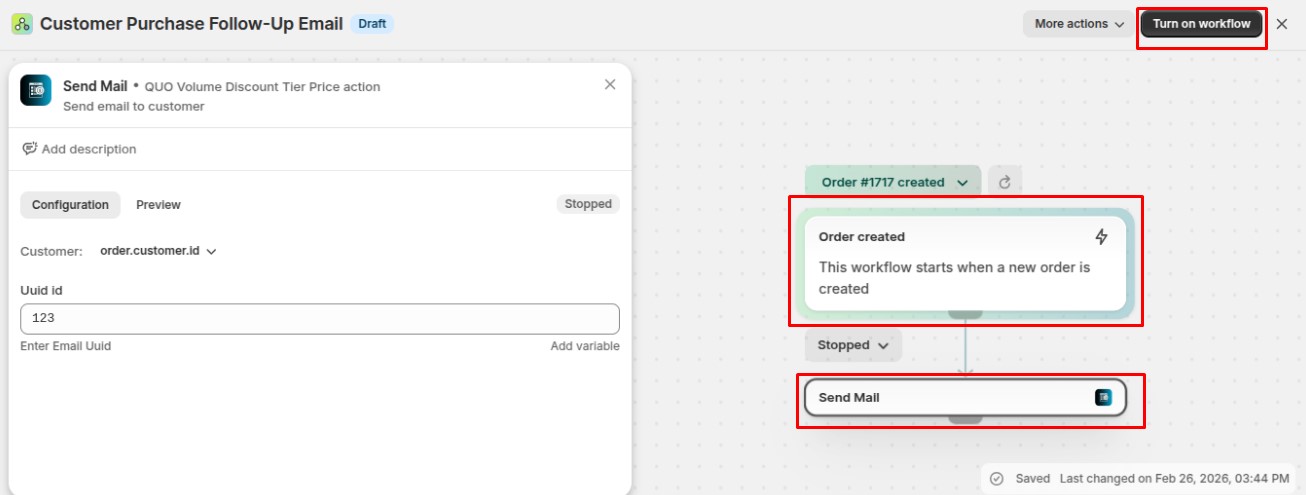
#### 2. Customer Purchase Follow-Up Email
**Purpose:**\
Automatically sends a **follow-up email after a customer completes a purchase**.
**How It Works:**
* The workflow triggers after a successful order.
* A targeted follow-up email is sent based on the selected products or conditions.
**Best Use Case:**
* Post-purchase engagement
* Upselling or cross-selling
* Sharing discount codes for repeat purchases
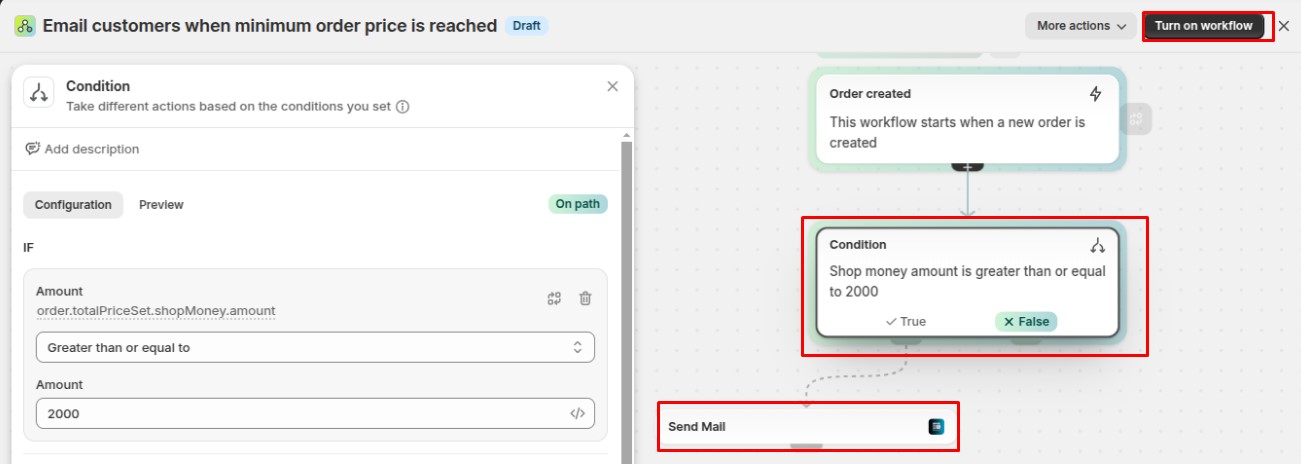
#### 3. Email Customers When Minimum Order Price Is Reached
**Purpose:**\
Sends an email when a customer’s **order total reaches a specified minimum amount**.
**How It Works:**
* The workflow checks the total order value.
* Once the minimum order price condition is met, an email is sent automatically.
**Best Use Case:**
* Order-value-based discounts
* Encouraging higher cart values
* Premium or high-value customer targeting
Once your Flow template is successfully configured for the selected discount code, the emails will be sent automatically based on the workflow conditions.