> For the complete documentation index, see [llms.txt](https://magecomp.gitbook.io/shopify/llms.txt). Markdown versions of documentation pages are available by appending `.md` to page URLs; this page is available as [Markdown](https://magecomp.gitbook.io/shopify/apps/quo-volume-discount-tier-price/campaign-list.md).
# Campaign List
The Campaign List page shows all your discount campaigns in one place. You can view campaign details, track their status, and quickly edit, activate, or delete campaigns as needed.
This is the field from where you can start creating the pricing tiers. You just need to select the **Add Campaign** button and start configuring the steps.
Follow these steps to create a new discount campaign in your app:
1. **Discount Title -**\
Enter a name for your discount campaign. This helps you identify the campaign easily in your dashboard.
2. **Start Date -**\
Select the date when you want the discount campaign to begin. Use the format **dd-mm-yyyy**.
3. **End Date -**\
Select the date when the discount campaign should end. Use the format **dd-mm-yyyy**.
4. **Customer Buys -**\
Define the purchase conditions required for the discount to apply:
* **Min Quantity**: Minimum number of items the customer needs to buy.
* **Min Amount**: Minimum total purchase amount required to activate the discount.
5. **Discount -**\
Set the type and value of the discount:
* **Percentage**: Apply a percentage-based discount.
* **Price**: Apply a fixed amount discount.
* **Quantity Discount**: Offer discounts based on the quantity purchased.
6. **Discount Type -**
\
Choose what kind of discount will be applied:
\
\- **Product Discount**: Discount applies to specific products.
\
\- **Order Discount**: Discount applies to the entire order.
\
\- **Shipping Discount**: Discount applies to shipping charges.
7. **Limit Number -**
\
Control how many times this discount can be used:
\
\- Set the **total number of times** the discount can be applied across all customers.
\
\- Optionally, limit to **one use per customer lifetime** to prevent repeated use by the same customer.
8. **Discount Settings**
This section allows you to choose **how the discount is applied** and **which products it applies to**.
#### Discount Type
**Automatic Discount**
An **automatic discount** is a discount that is **applied automatically at checkout** when a customer meets the required conditions.
Customers **do not need to enter any discount code**.

The discount is applied seamlessly during checkout, making the buying process faster and easier.
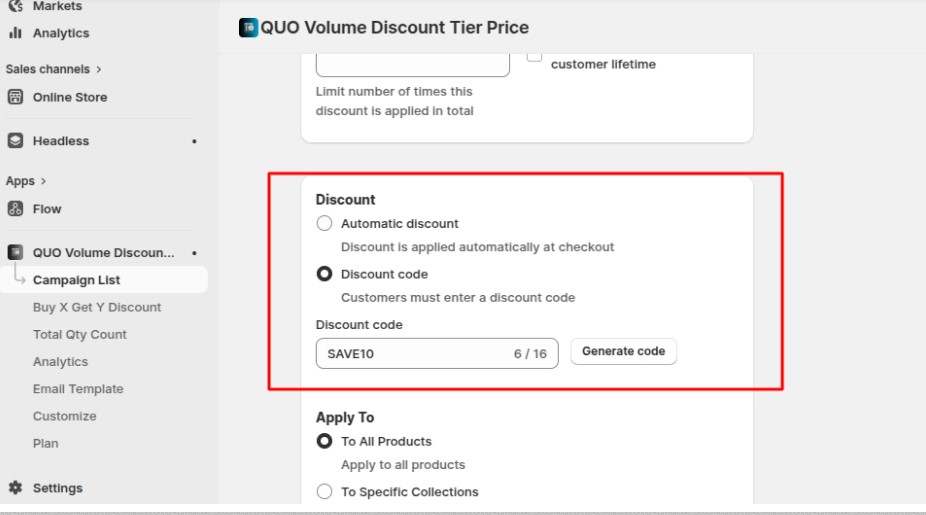
**Discount Code**
This feature ensures that **one discount code is used consistently throughout the entire customer journey**.
When you create a campaign using a **discount code**, the same code:
* Applies the discount correctly
* Is automatically applied at checkout
* Is included in the order confirmation email sent to the customer
This removes the need for customers to re-enter the discount code and avoids confusion caused by multiple or mismatched discount codes.
#### How It Works
1. While creating a discount campaign, select **Discount Code** under the **Discount** section.
2. Enter a custom discount code (for example, **SAVE10**) or click **Generate code** to auto-create one.
3. The discount is applied based on the selected discount code.
4. During checkout, the **same discount code is automatically applied**.
5. After the order is placed, the **same discount code is included in the order confirmation email**.
6. Email content is managed from the **Email Template** section.
The discount code remains the same across the store, checkout, and customer communication.
9. **Apply To -**
\
Specify which products or collections the discount applies to:
\
\- **To All Products**: Applies to every product in the store.
\
\- **To Specific Collections**: Applies only to selected product collections.
\
\- **To Specific Products**: Applies only to selected individual products.
You can also **preview the campaign details** beside the fields. Once all fields are configured, **save your campaign**. The discount will automatically activate according to the start and end dates you’ve set.
.png?alt=media&token=9a5aacb6-c71b-49be-a4c0-88e38f98d709)