> For the complete documentation index, see [llms.txt](https://magecomp.gitbook.io/shopify/llms.txt). Markdown versions of documentation pages are available by appending `.md` to page URLs; this page is available as [Markdown](https://magecomp.gitbook.io/shopify/apps/magecomp-mobile-app-builder/template.md).
# Template
Template Pro lets you install, customize, and manage multiple themes for your mobile app. Follow these steps to create the perfect home page and key sections.
## **1. Install & Select Theme**
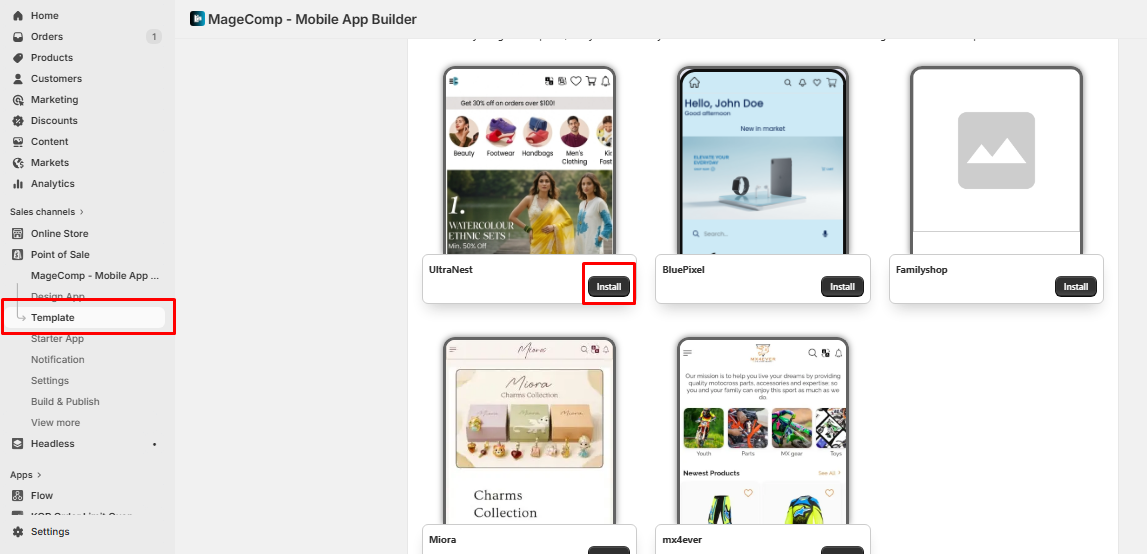
#### 1. Install Templates
Install a template to enable app integration and ensure proper functionality.
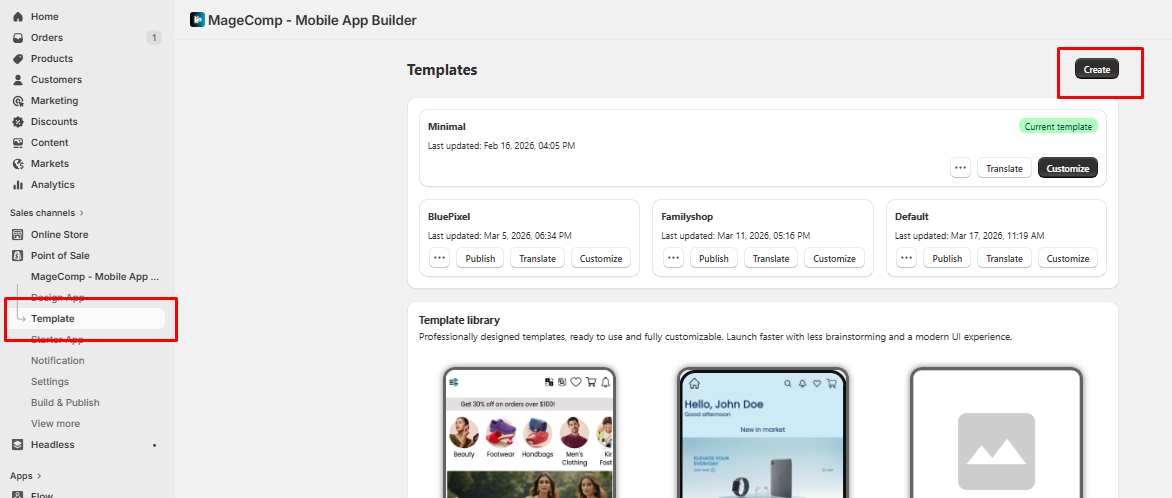
#### 2. Create Your Own Template
Click **Create** (top right) to build a new template and assign it a custom name.
#### 3. Customize Your Design
Click **Customize** to adjust colors, fonts, banners, and layout as per your brand.
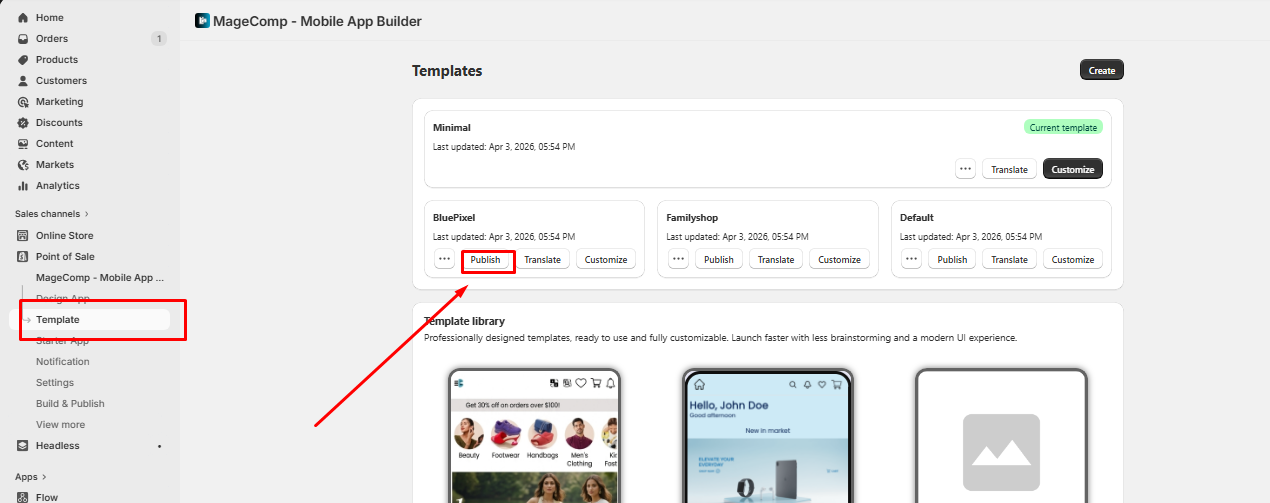
#### 4. Publish & Go Live
Click **Publish** to make the template live. Changes reflect instantly in your app.
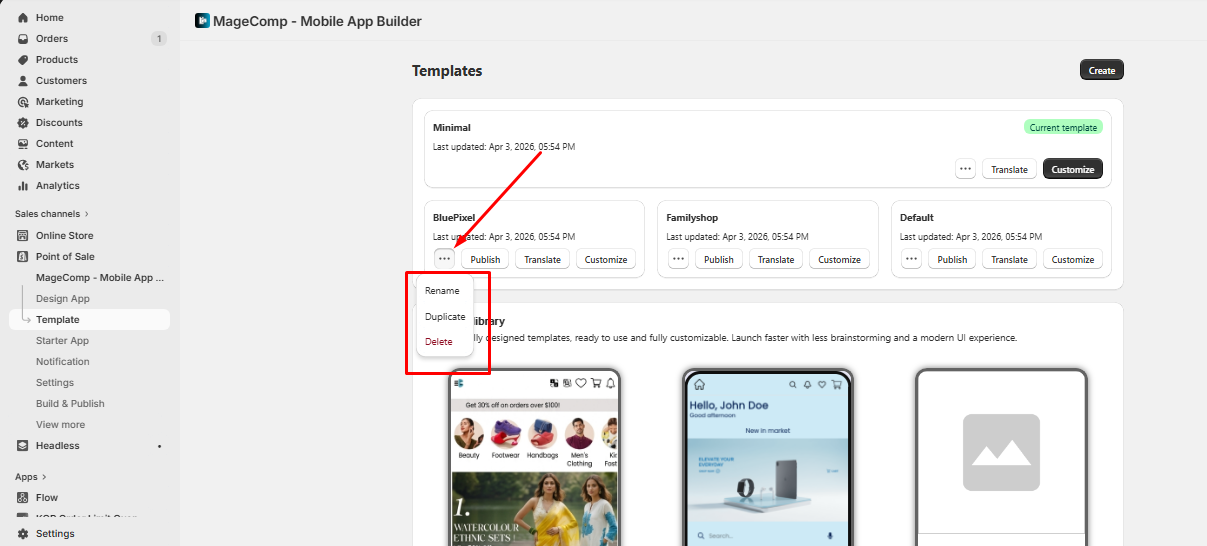
#### 5. Manage Your Templates
Use the **••• menu** to Rename, Duplicate, or Delete templates. Duplicate to test variations easily.
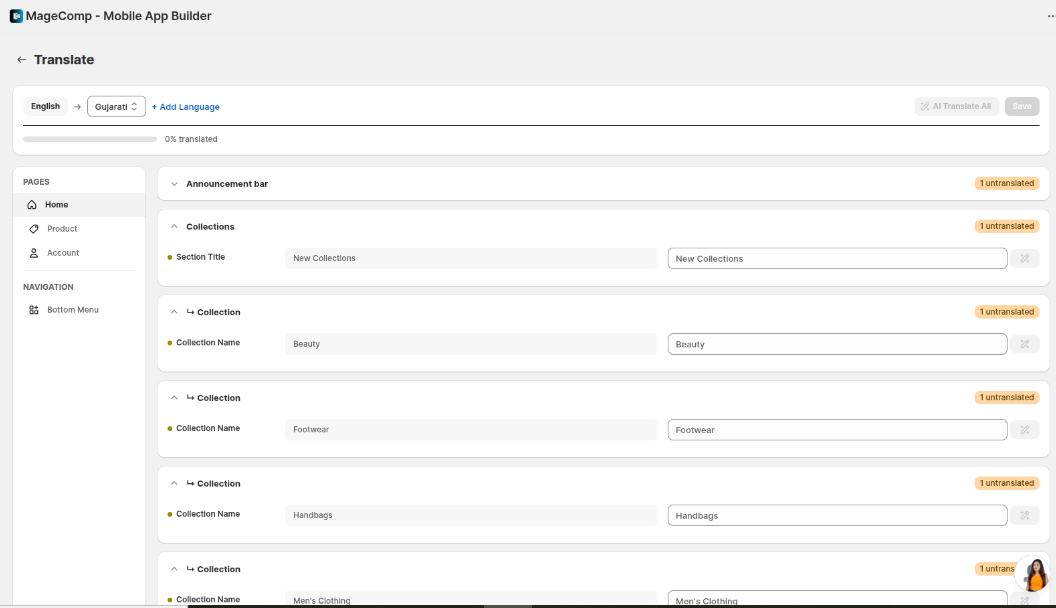
#### 6. Multi-Language Support for Templates
Easily create and manage content in multiple languages to support a global audience.
{% hint style="info" %}
**Tip:** You can have multiple themes installed and switch between them anytime.
{% endhint %}
We currently offer 6 beautifully designed templates to choose from, allowing you to select the one that best matches your brand and business needs.
## **2. Home Page Customization Sections for default templates**
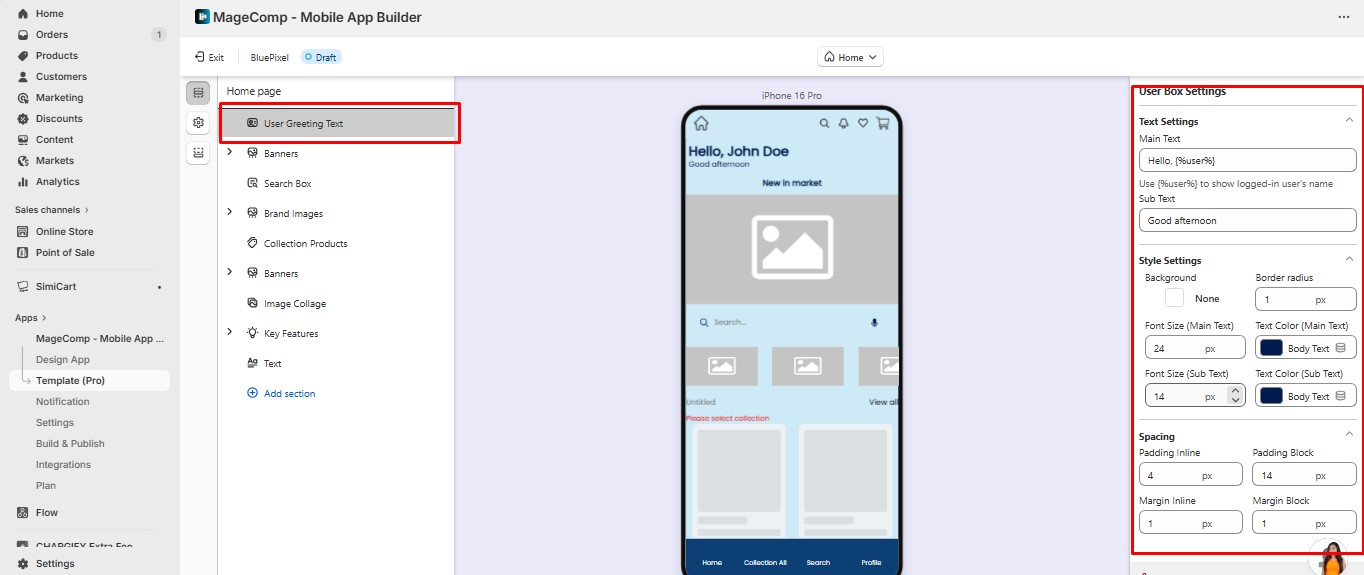
1. **User Greeting (User Box)**
* **Purpose:** Personalizes the app for logged-in users.
* **Settings:**
* **Main Text: Hello {%User%}** – shows the logged-in user’s name.
* **Sub Text:** e.g., Good Afternoon
* **Style Settings:** Background, border radius, font size, text colors, padding, and margins.
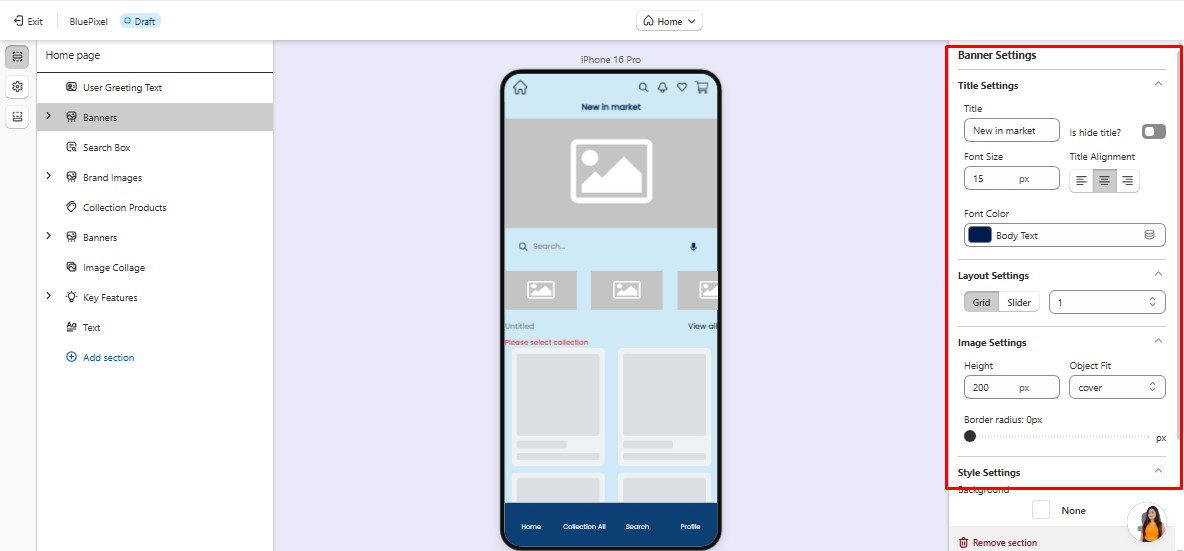
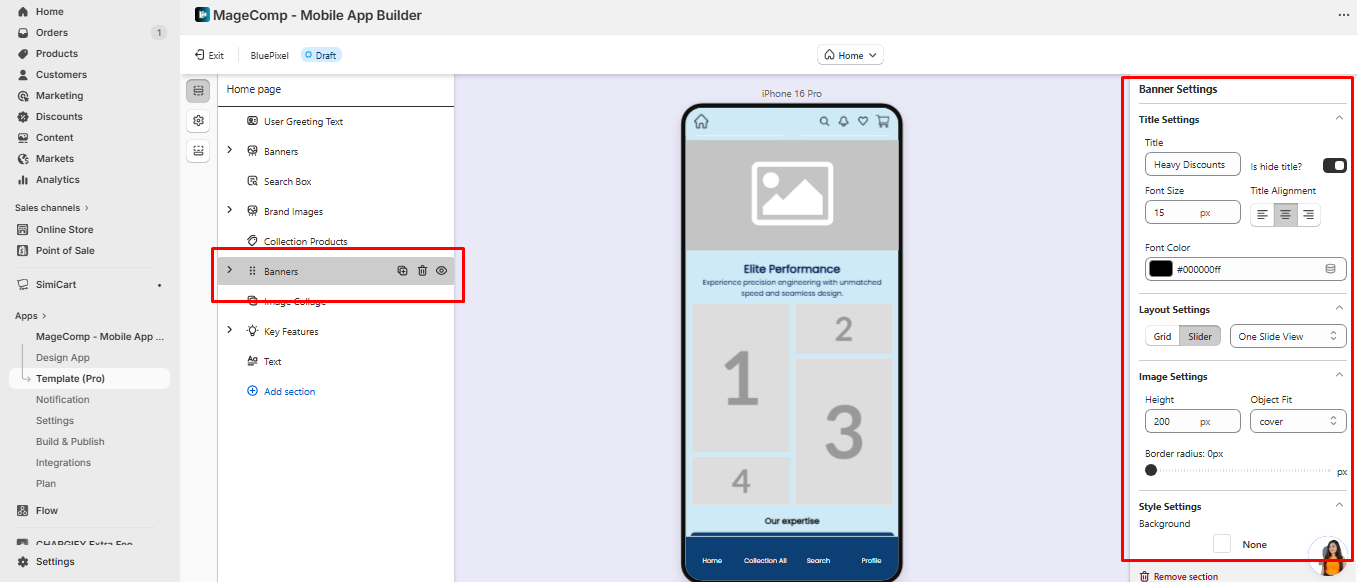
2. **Banners :**
* **Purpose:** Showcase products, promotions, or collections visually.
* **Settings:**
* Upload images and link actions (products, collections, pages).
* Layout: Slider or grid.
* Title: Customize font, color, alignment, and visibility.
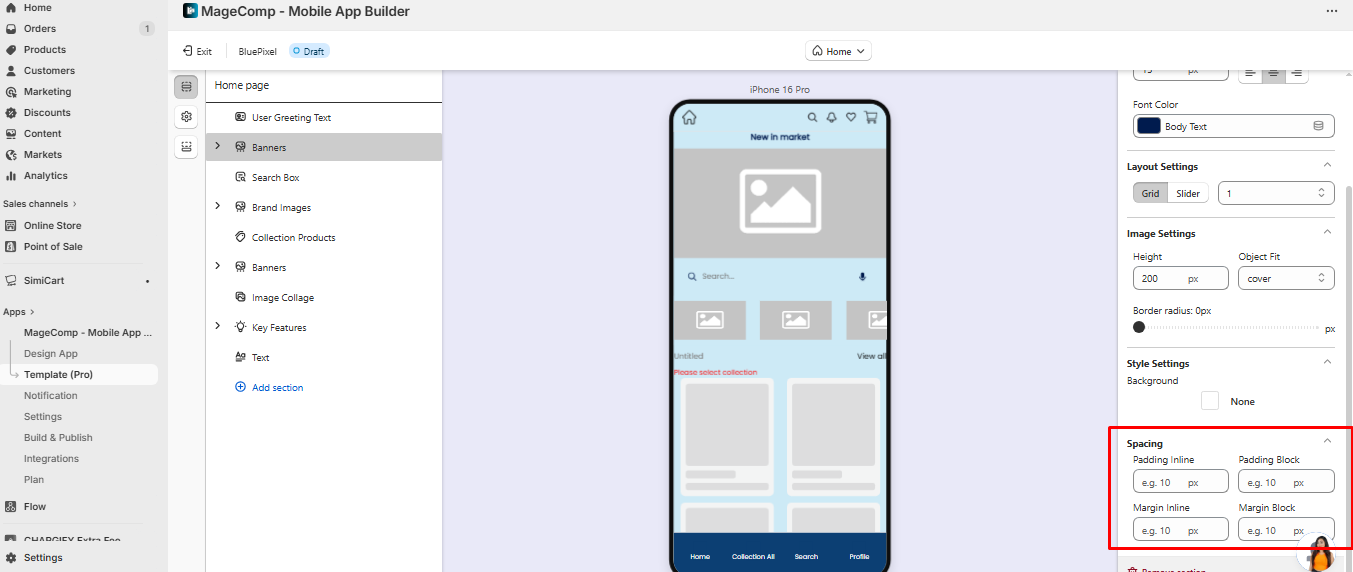
* Spacing: Adjust padding and margins for perfect placement.
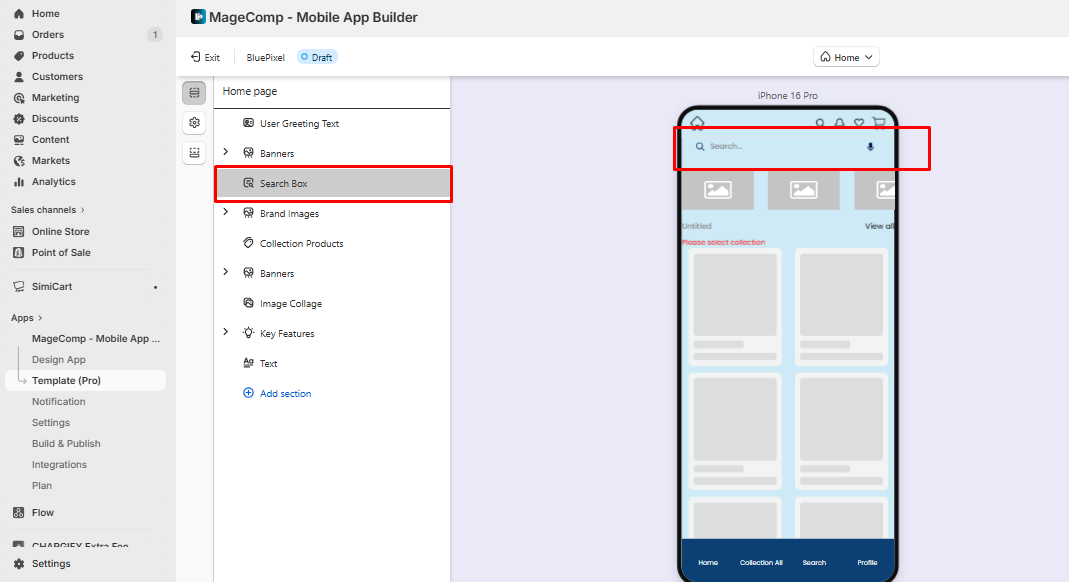
**Search Box**
* **Purpose:** Allows users to search for products and content easily.
* **Settings:** Background, font styles, padding, and placement.
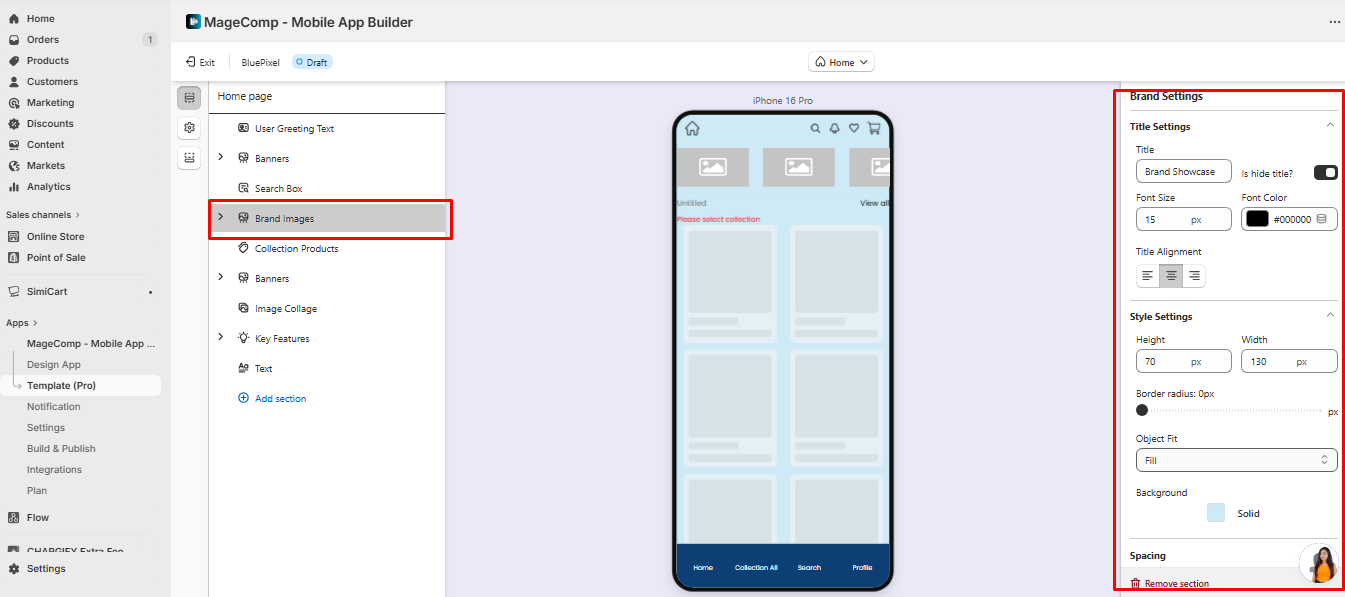
**Brand Showcase**
* **Purpose:** Highlight your brand logos or partners.
* **Settings:**
* Title: Font, color, alignment, hide/show.
* Image dimensions, object fit, border radius, and background.
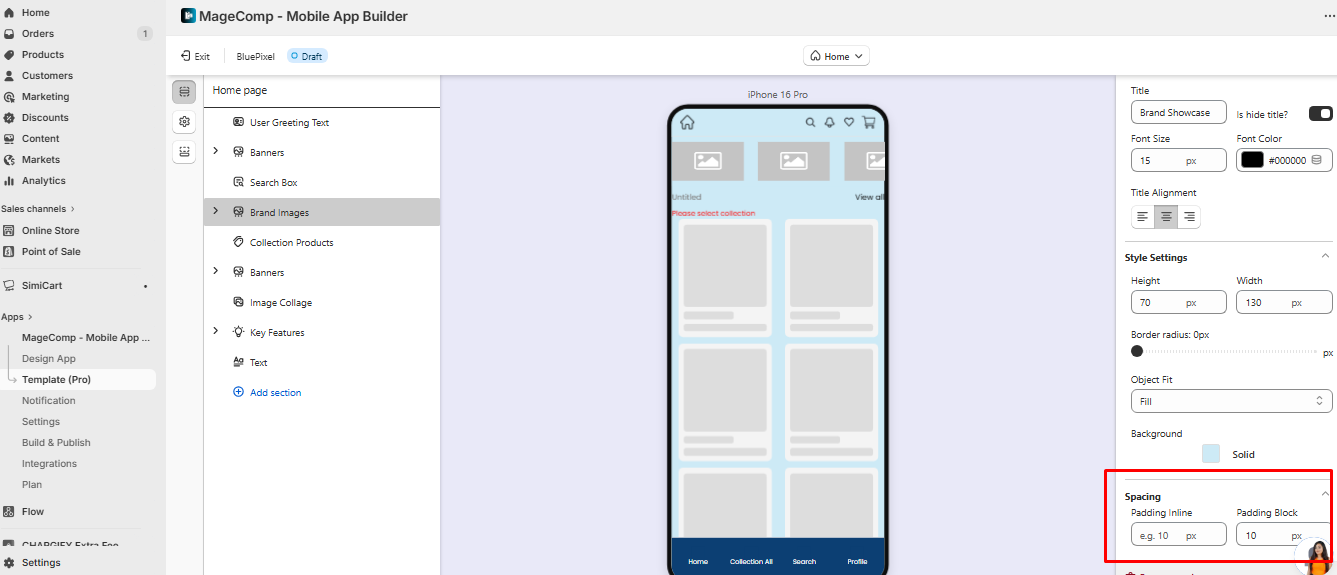
* Padding and spacing adjustments.
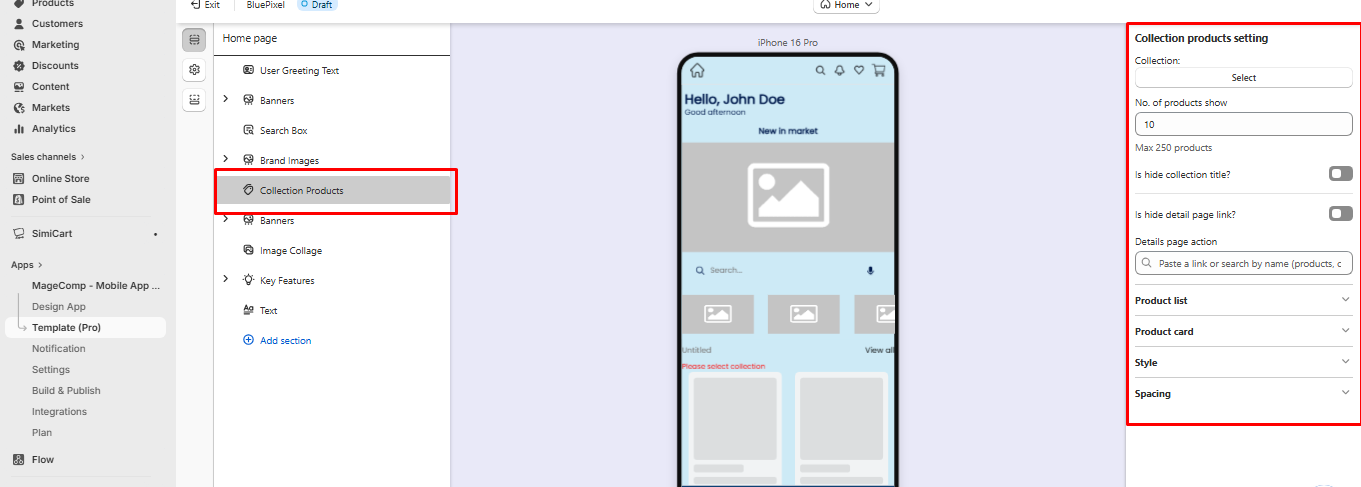
**Collection Products (Product List)**
* **Purpose:** Display products in an attractive grid or slider.
* **Settings:**
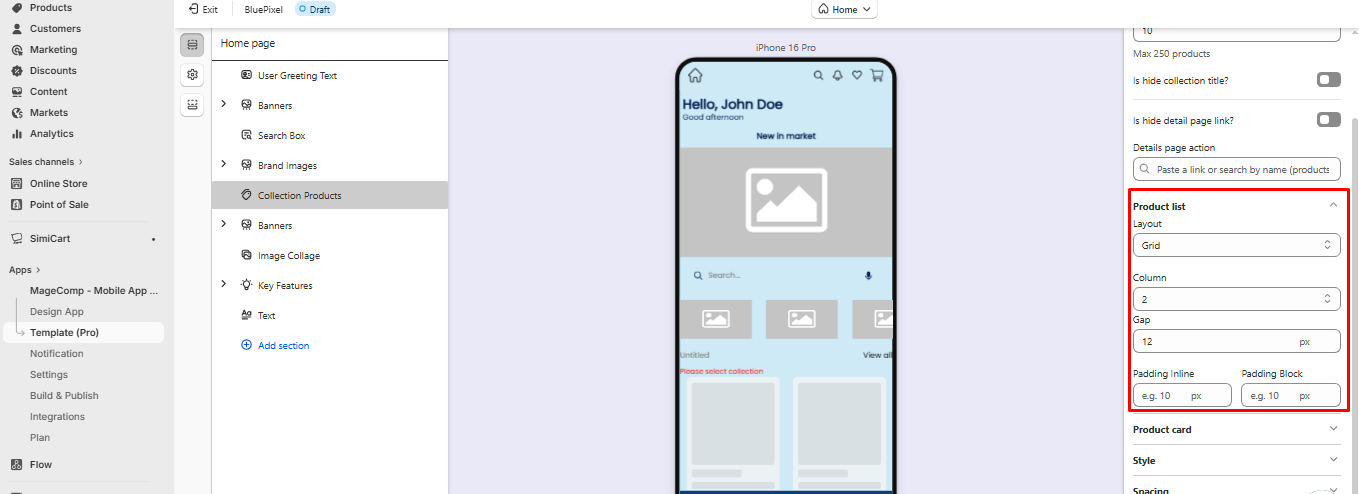
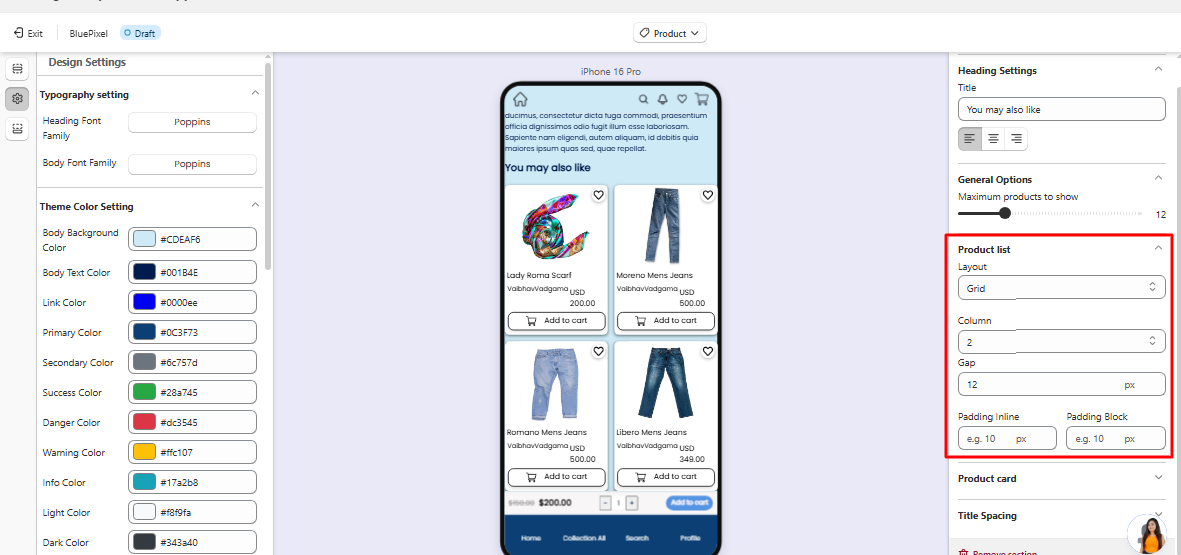
### 1. Product List
The **Product List** section lets you showcase collections of products in your app in a **grid or slider layout**, with full control over the product cards, styling, and spacing.
**1. Layout Setting**
* **Grid or Slider:** Choose how your products are displayed.
* **Grid Example:** 2 columns, 12px gap between items.
* **Slider Example:** Users can swipe through products horizontally.
* **Columns:** Number of columns for the grid. Example: `2` columns shows 2 products per row.
* **Gap:** Space between products. Example: `12px` gap keeps items visually separated.
* **Padding Inline / Block:** Space inside the product section.
* **Inline padding:** Space on left and right. Example: `10px`.
* **Block padding:** Space on top and bottom. Example: `10px`.
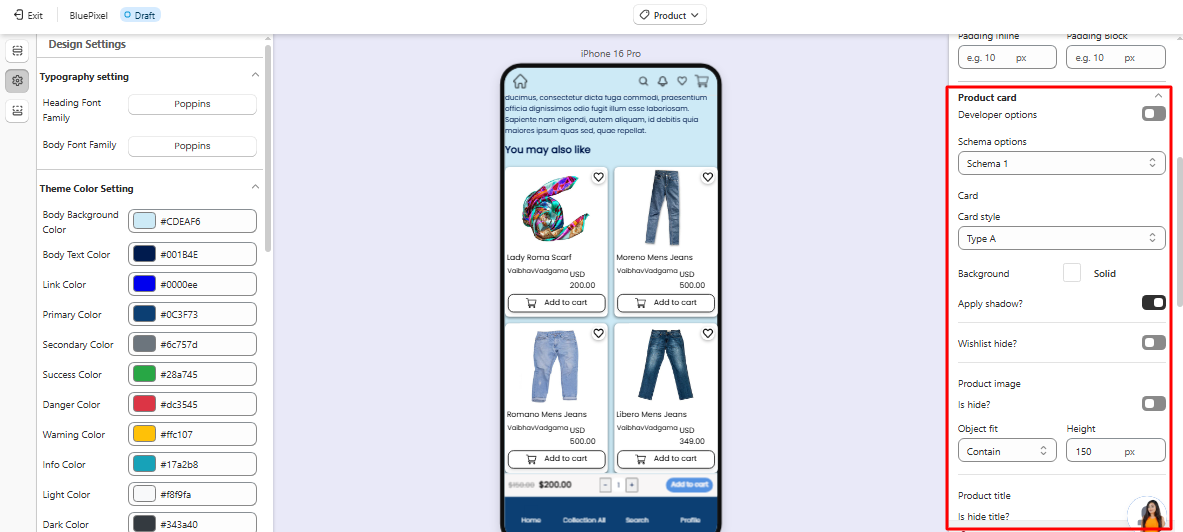
#### **2. Product Card Settings**
This controls how individual products are displayed inside the grid or slider.
**Developer Options / Schema Options**
* **Schema 1:** Predefined layout schema for product card structure.
* **Card Style (Type A, B…):** Determines the card design (e.g., Type A may have image on top, text below).
* Enhanced product card designs and layouts with 3 unique card styles to help create a more engaging and visually appealing shopping experience.
**Background & Shadow**
* **Background:** Set a background color for the product card.
* **Apply Shadow:** Enable shadow for a lifted card effect.
**Wishlist**
* **Hide/Show Wishlist:** Decide whether users can add products to their wishlist.
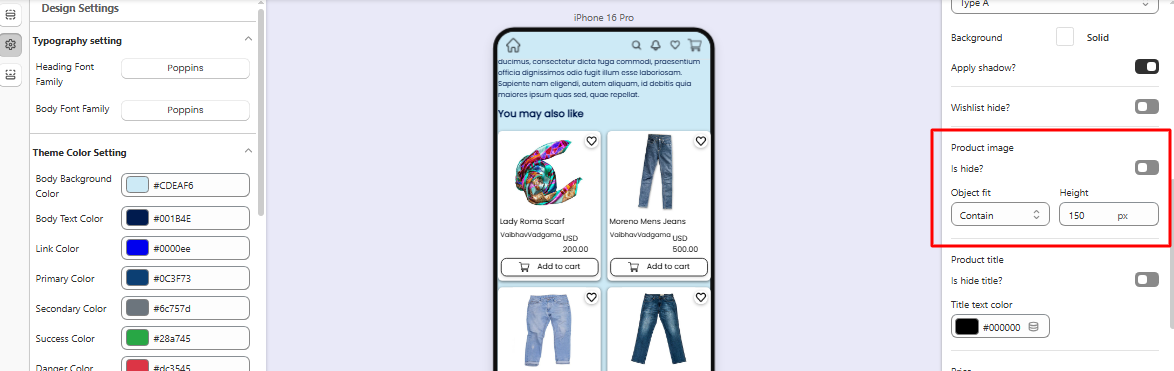
#### **1. Product Image**
* **Hide Image:** Toggle visibility of the product image.
* **Object Fit:** Determines how the image fits the card.
* **Contain:** Image fits fully without cropping.
* **Cover:** Image fills the card, may crop edges.
* **Height:** Set a fixed image height. Example: 150px.
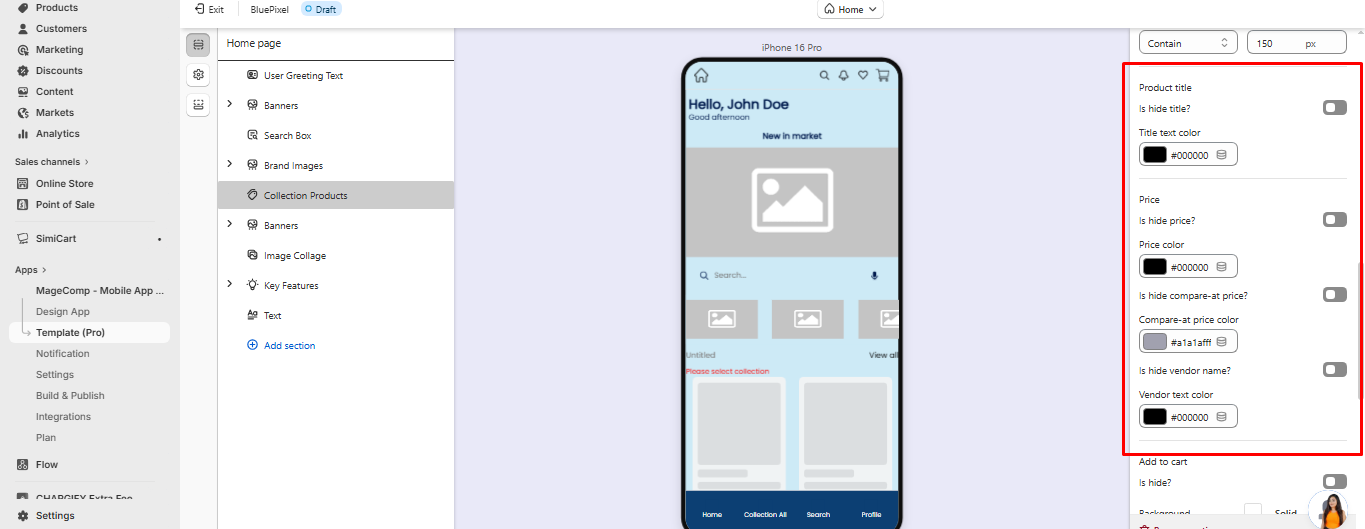
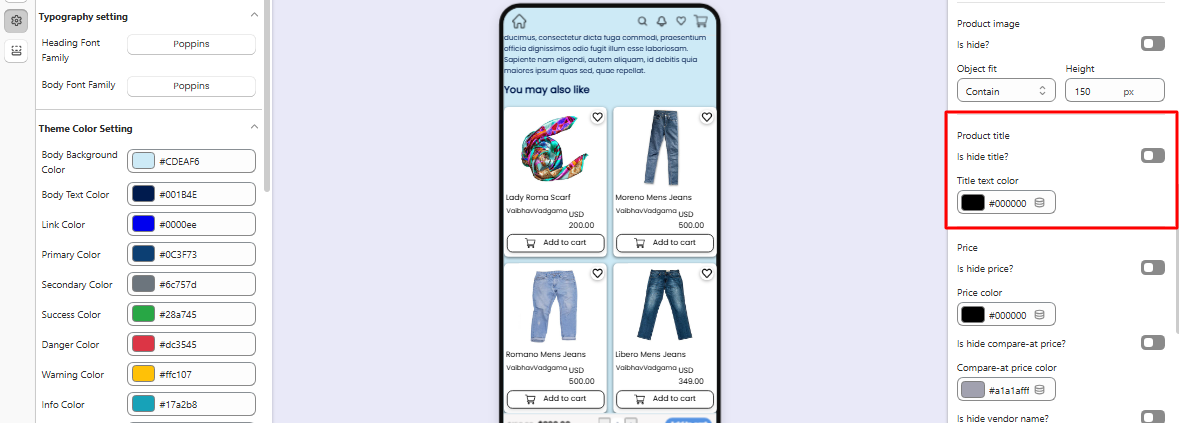
#### **2. Product Details**
* **Title:**
* Hide/Show option.
* Text color customization. Example: `#000000` (black).
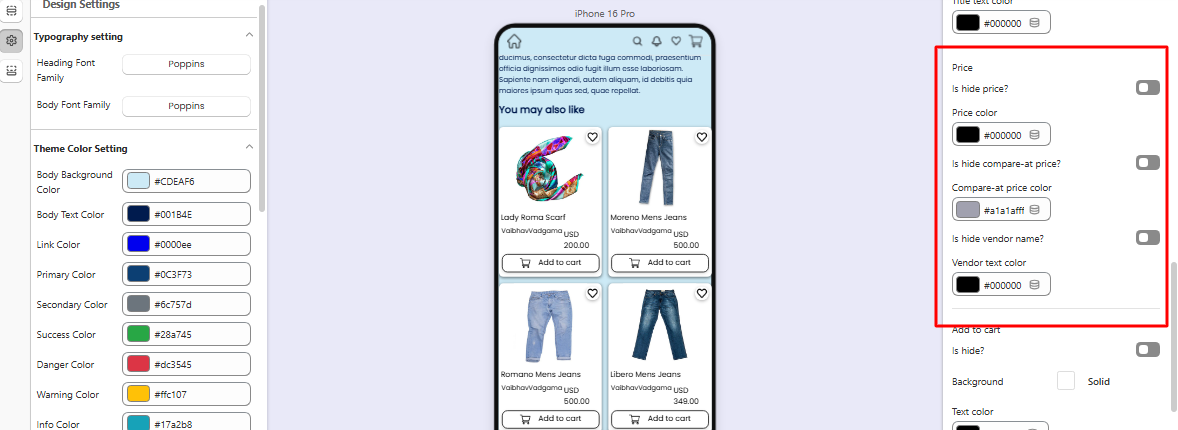
* **Price:**
* Hide/Show price.
* Price color customization. Example: `#000000`.
* **Compare-at Price:**
* Hide/Show original price for discounts.
* Color customization. Example: `#a1a1afff`.
* **Vendor Name:**
* Hide/Show the vendor or brand.
* Color customization. Example: `#000000`.
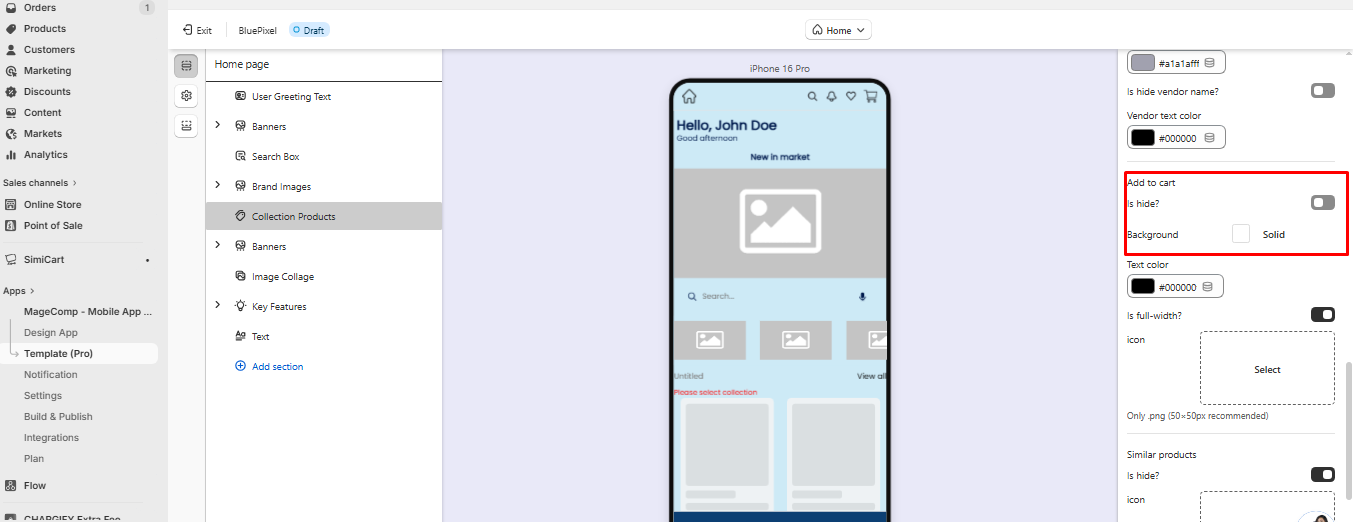
#### **3. Add to Cart Button**
* **Hide/Show:** Choose whether to display the Add to Cart button.
* **Background & Text Color:** Example: Black text (#00000ff) on a white background.
* **Full-width Option:** Make the button span the entire card width.
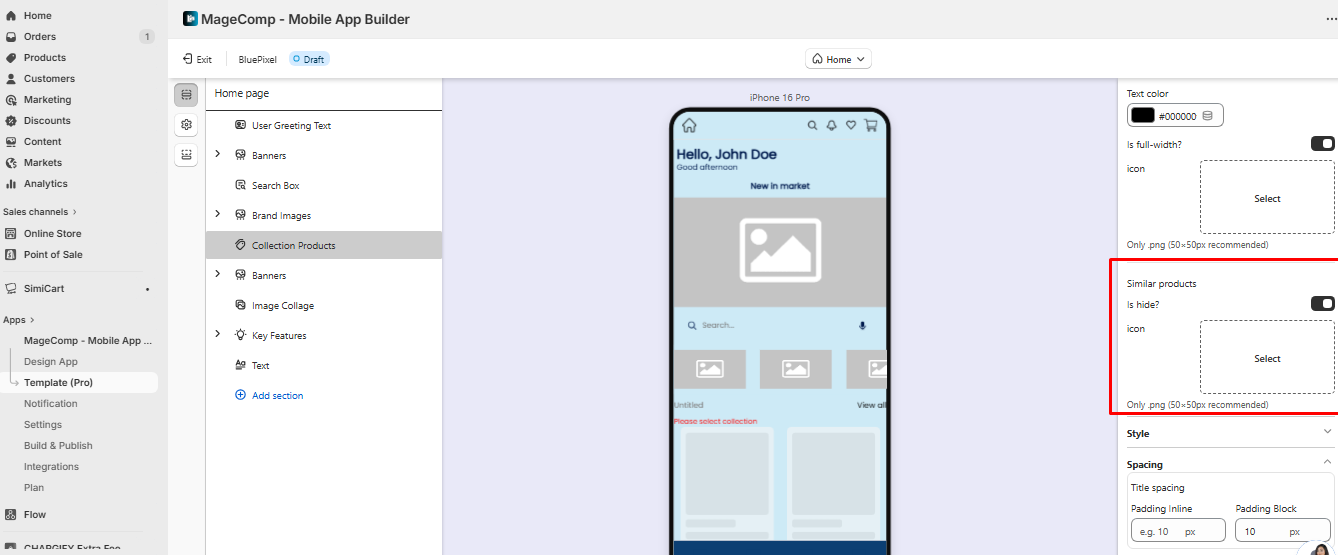
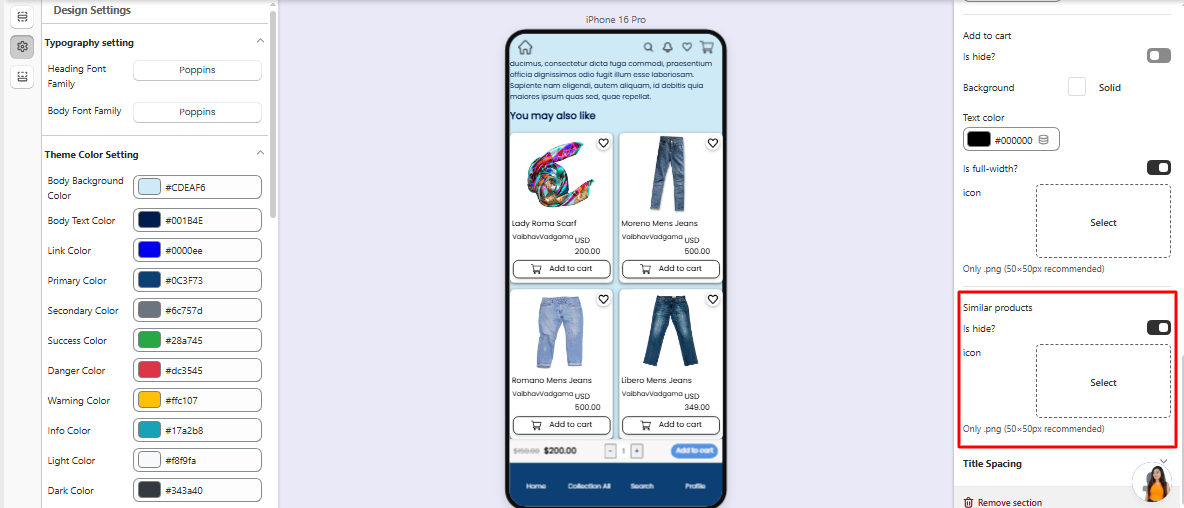
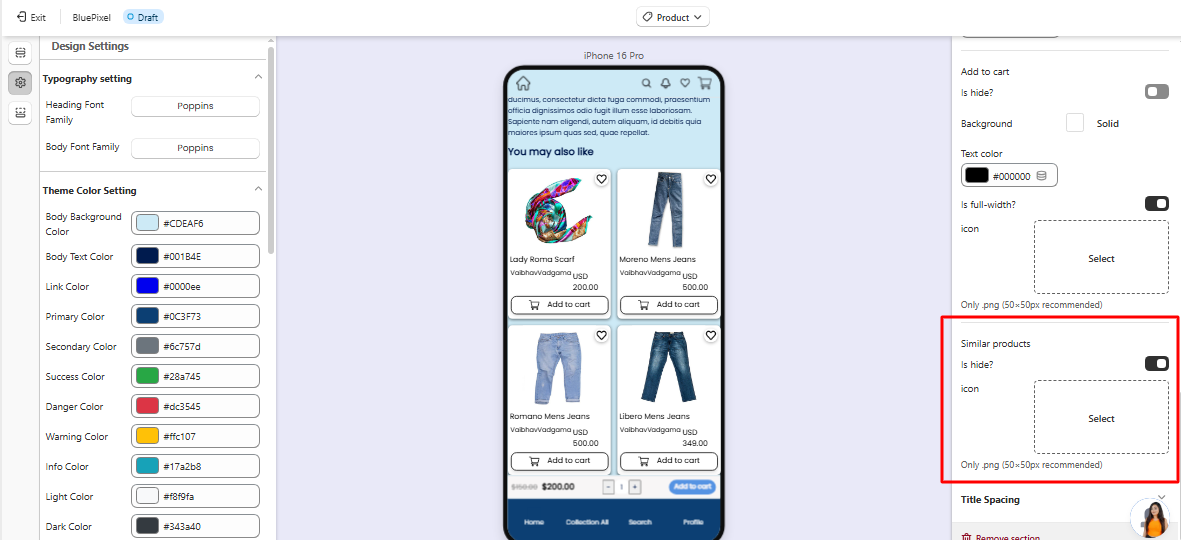
#### **4. Similar Products**
* **Hide/Show:** Decide whether to show similar products for cross-selling.
* **Icon Settings:** Only `.png` recommended, size 50×50px.
#### 5. Variant Picker Settings
The Variant Picker allows customers to select product options such as size, color, material, or other variants before adding a product to the cart.
### Title
**Choose Your Options**
This is the heading displayed above the variant selection area. You can customize the text to match your store's branding and style.
### Text Settings
#### Text Color
Controls the color of the variant option labels and related text.
**Example:** #000000(Black)
#### Text Font Size
Determines the size of the text displayed within the variant picker.
**Example:** 15px
### Active Option Style
These settings control the appearance of the currently selected variant option.
#### Active Background
Sets the background color of the selected option.
**Example:** Primary color from your app theme.
#### Active Text Color
Defines the text color displayed on the selected option.
**Example:** #FFFFFF (White)
### Inactive Option Style
These settings control the appearance of variant options that are not currently selected.
#### Inactive Background
Sets the background color of unselected options.
**Example:** #FFFFFF (White)
#### Inactive Text Color
Defines the text color displayed on unselected options.
**Example:** #00000 (Black)
#### Inactive Border Color
Sets the border color around unselected variant options.
**Example:** #DDDDD (Light Gray)
### Cart Button Settings
These settings customize the appearance of the Add to Cart button.
#### Button Text Color
Defines the color of the button label text.
**Example:** #FFFFFF (White)
#### Button Icon Color
Sets the color of any icons displayed within the cart button.
**Example:** #FFFFFF(White)
#### Button Border Radius
Controls the roundness of the button corners.
**Example:** 8px
* Lower values create sharper corners.
* Higher values create more rounded corners.
### Option Border Radius
Defines the corner roundness of variant option buttons.
**Example:** 4px
* Lower values create square corners.
* Higher values create rounded corners.
### General Settings
#### Title Text Color
Controls the color of the Variant Picker title.
**Example:** #000000 (Black)
#### Title Font Size
Determines the size of the Variant Picker title text.
**Example:** 20px
### Popup Background
#### Close Icon Color
Defines the color of the close (X) icon displayed in the variant selection popup.
Choose a color that provides sufficient contrast against the pop-up background to ensure visibility and accessibility.
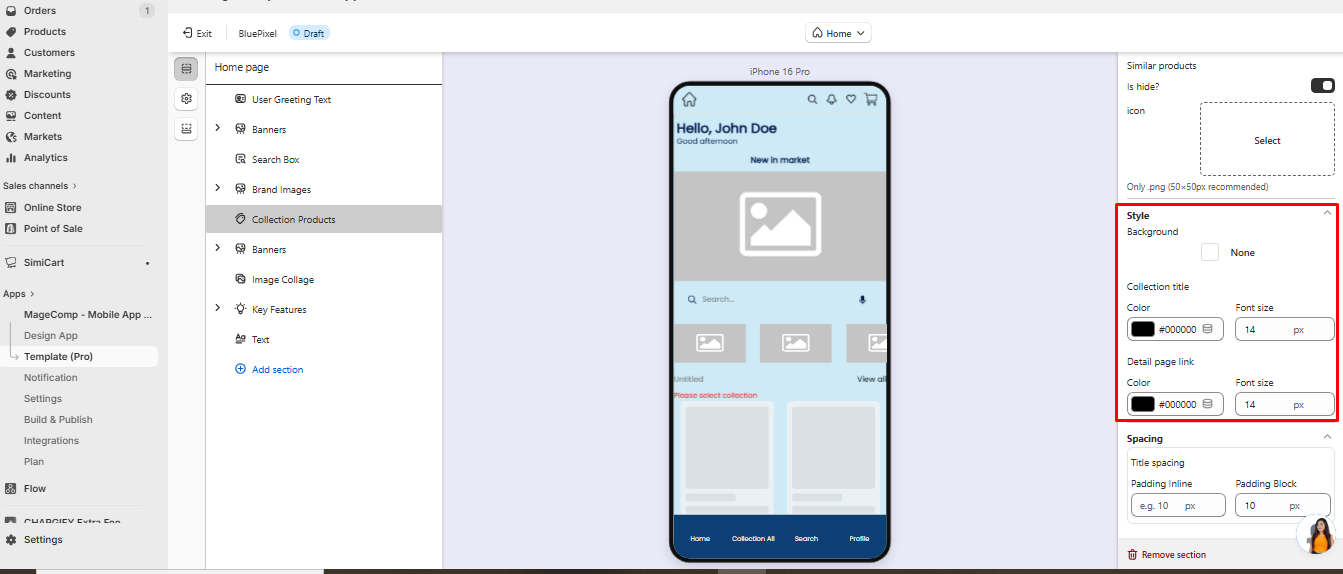
#### **3. Styling & Collection Title**
* **Background:** Customize section background.
* **Collection Title:**
* Color: Example `#000000` (black).
* Font Size: Example `14px`.
* **Detail Page Link:**
* Text color: Example `#000000`.
* Font size: Example `14px`.
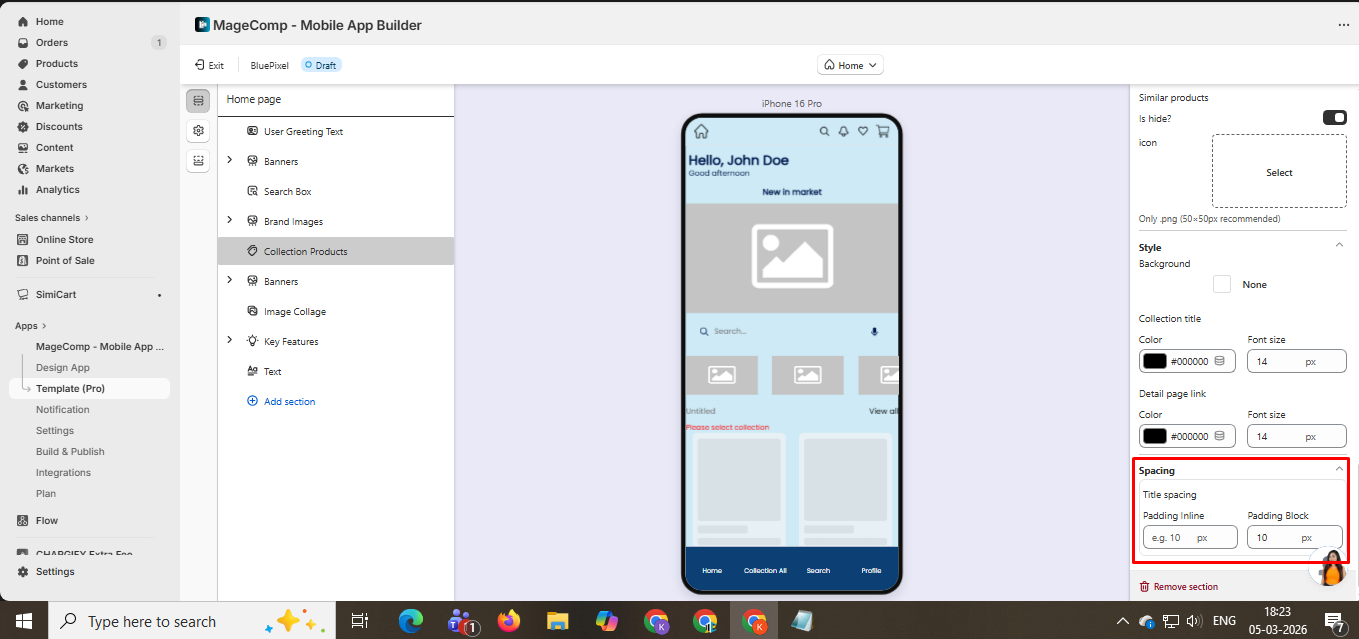
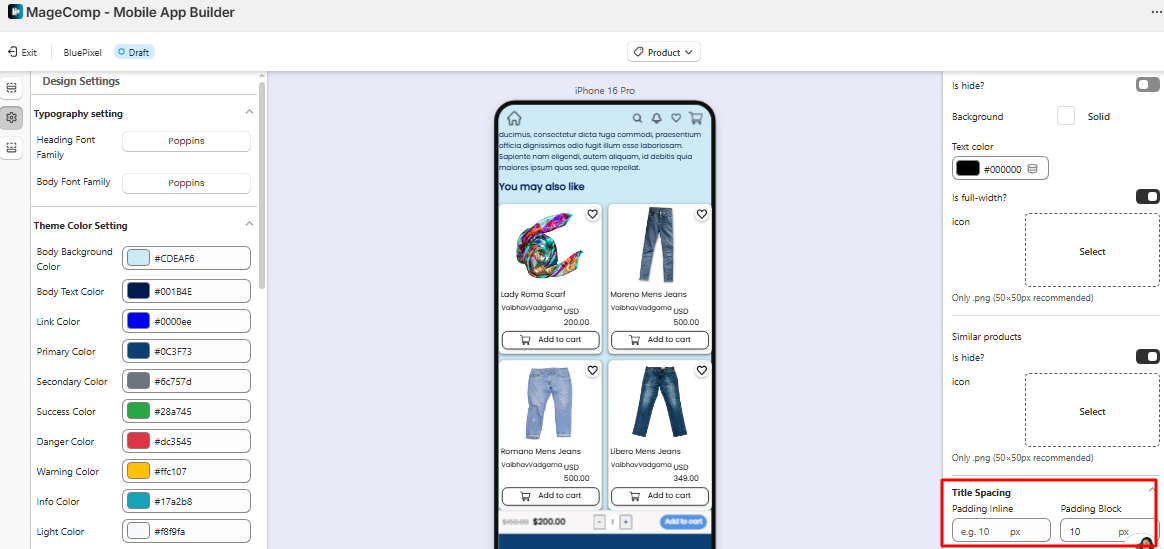
#### **4. Spacing**
* **Title Spacing:** Adjust padding and margins around the collection title.
* **Padding Inline:** Space left and right. Example: `10px`.
* **Padding Block:** Space top and bottom. Example: `10px`.
#### **Example Use Case**
Suppose you want to display your **“Summer Collection”** in a 2-column grid:
* **Grid:** 2 columns, 12px gap
* **Product Card:** Type A, shadow enabled, wishlist shown
* **Product Image:** Contain, height 150px
* **Title & Price:** Visible, black text
* **Add to Cart:** Visible, full-width button, black text
* **Collection Title:** Summer Collection, black, font 14px
* **Padding Inline/Block:** 10px each
This setup ensures your product section is **clean, visually balanced, and fully functional** for your app users.
**1. Banner Slider / One Slide View**
* **Purpose:** Highlight promotions or featured products.
* **Settings:** Image height, object fit, border radius, spacing, padding, and margin.
* **Layout Options:** One slide view or multiple slides.
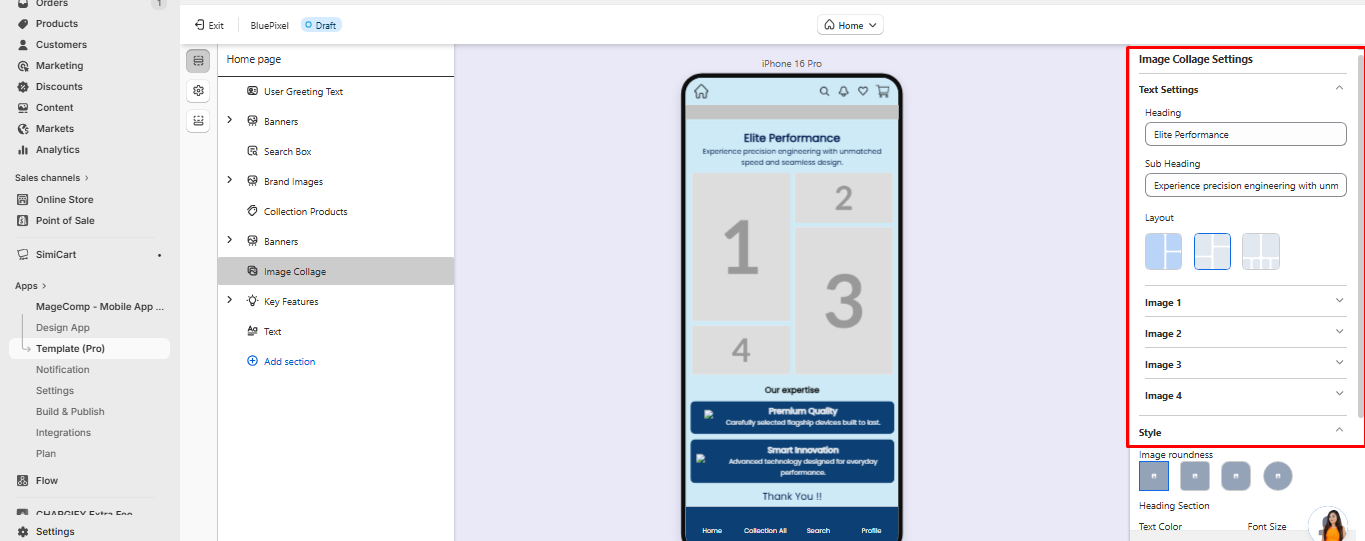
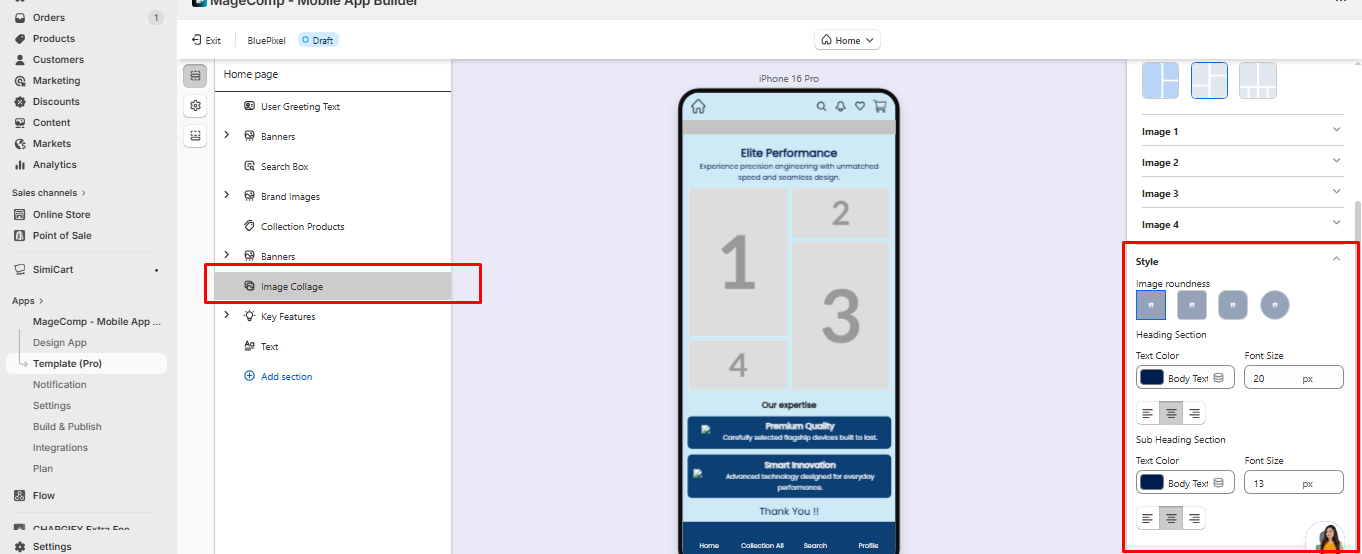
**2. Image Collage**
* **Purpose:** Display multiple images with heading and subheading.
* **Settings:**
* Heading & Subheading: Text, font size, color.
* Upload multiple images, set object fit, and link actions.
* Adjust image roundness and spacing.
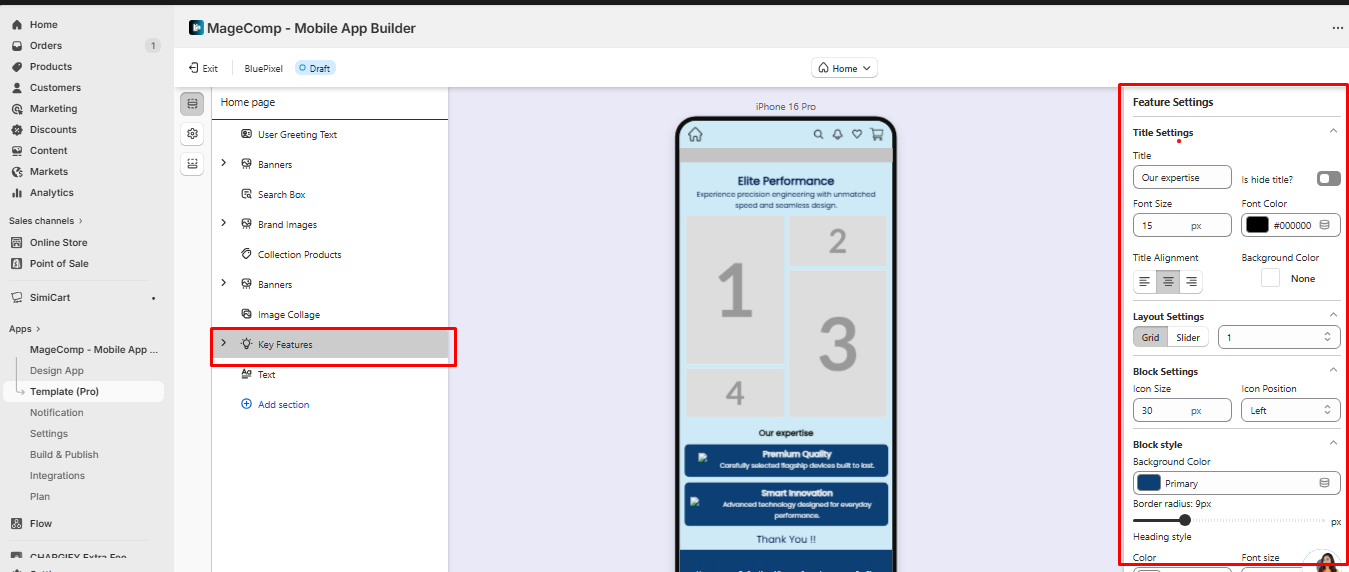
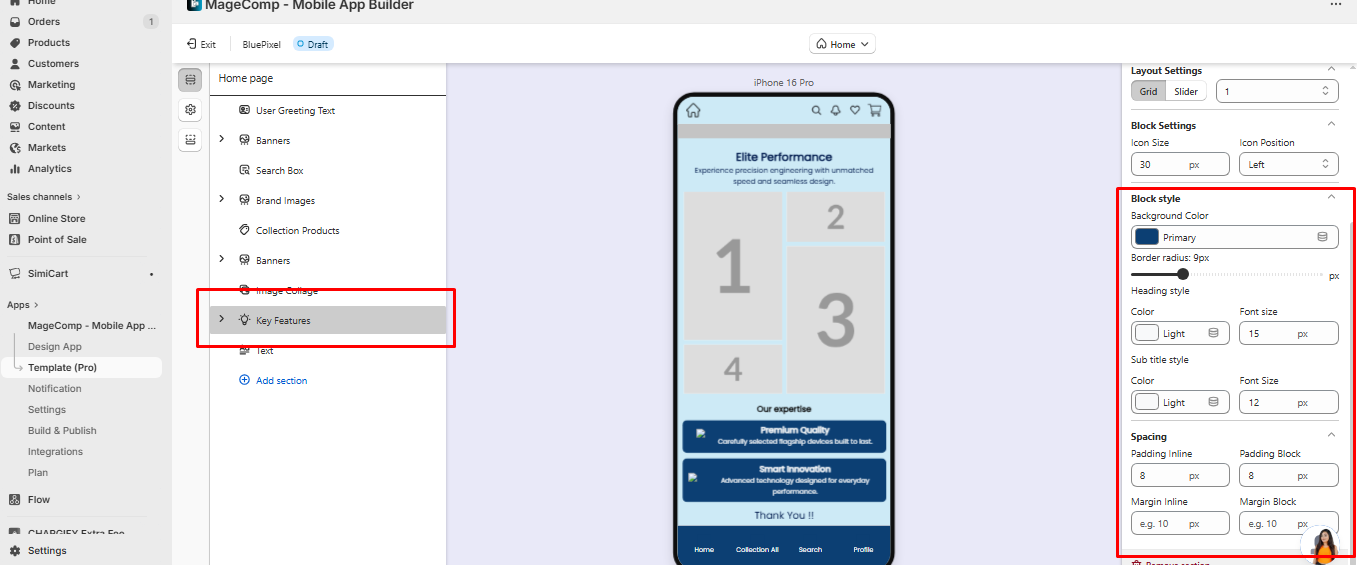
**3. Key Features Section**
* **Purpose:** Highlight your services or product benefits.
* **Settings:**
* Title: Font size, color, alignment.
* Blocks: Icon size, position, background color, border radius.
* Heading & subtitle: Font size, color, padding, margin.
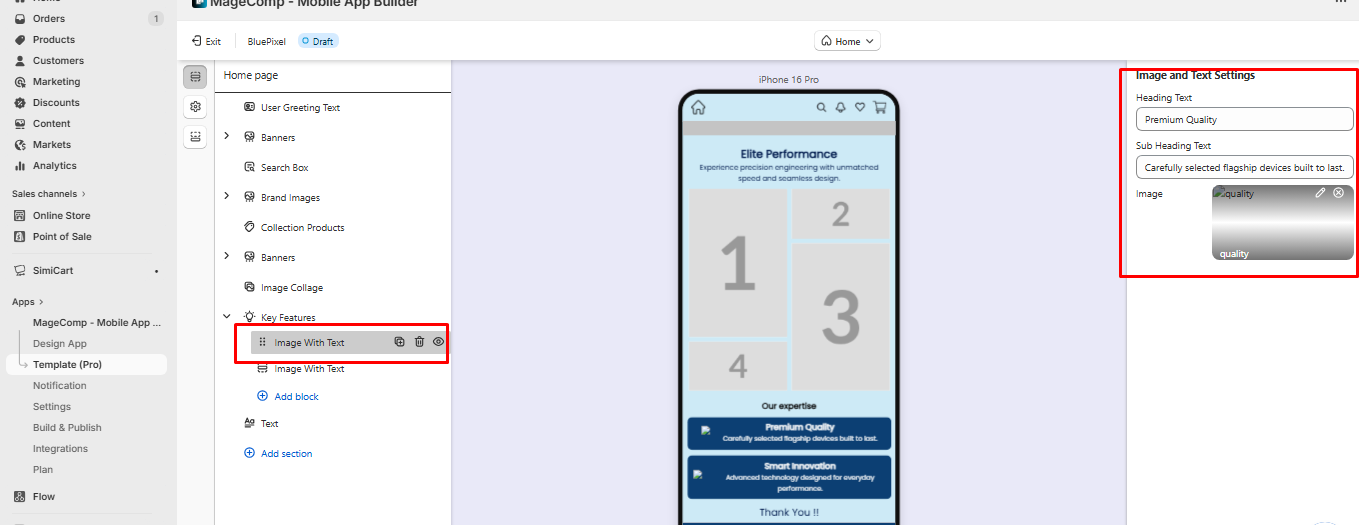
**Image with Text**
* **Purpose:** Showcase products with descriptions.
* **Settings:** Heading & Subheading, image object fit, spacing, padding, background.
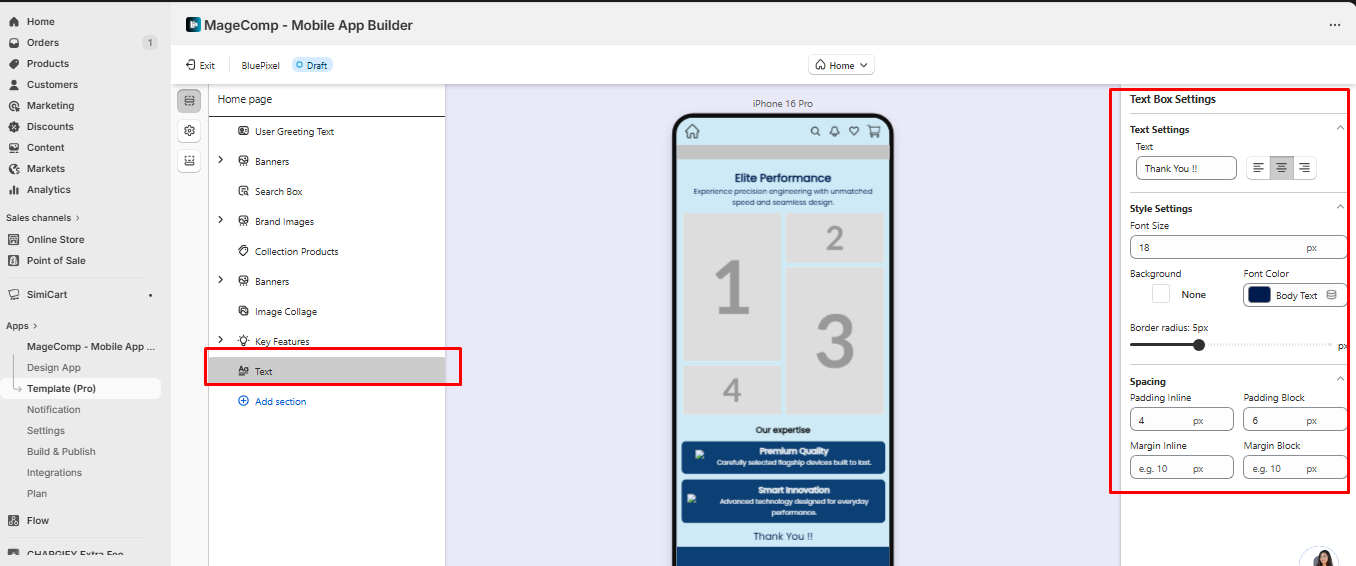
**4. Text Box**
* **Purpose:** Add standalone text messages or announcements.
* **Settings:** Text content, font size, color, background, border radius, padding, and margin.
#### Multiple Border Styles
Added multiple **border style options** for the **Image with Text** section, allowing you to customize the appearance of image borders and create more visually appealing layouts that match your brand.
#### Enhanced Image with Text Customization
The **Image with Text** section now includes additional customization options, such as **border images**, **border radius**, and improved image display settings, giving you greater flexibility to design engaging and unique content sections within your app.
## 3. Product Page Settings
The **Product Page Settings** allow you to control how products appear on the product detail page, including product images, wishlist behavior, product recommendations, and the product card layout. These settings help you customize the shopping experience while keeping the design aligned with your brand.
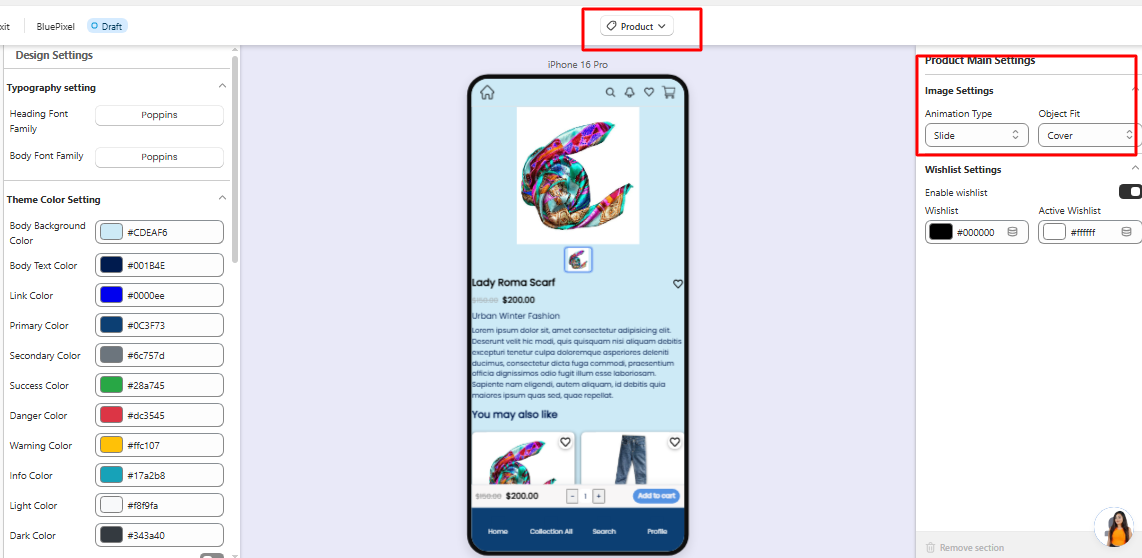
### Image Settings
These settings control how product images are displayed.
**Animation Type**\
Defines the transition effect when users swipe through product images.\
Example: *Slide*
**Object Fit**\
Controls how images adjust inside the image container.\
Example: *Cover* ensures the image fills the container without distortion.
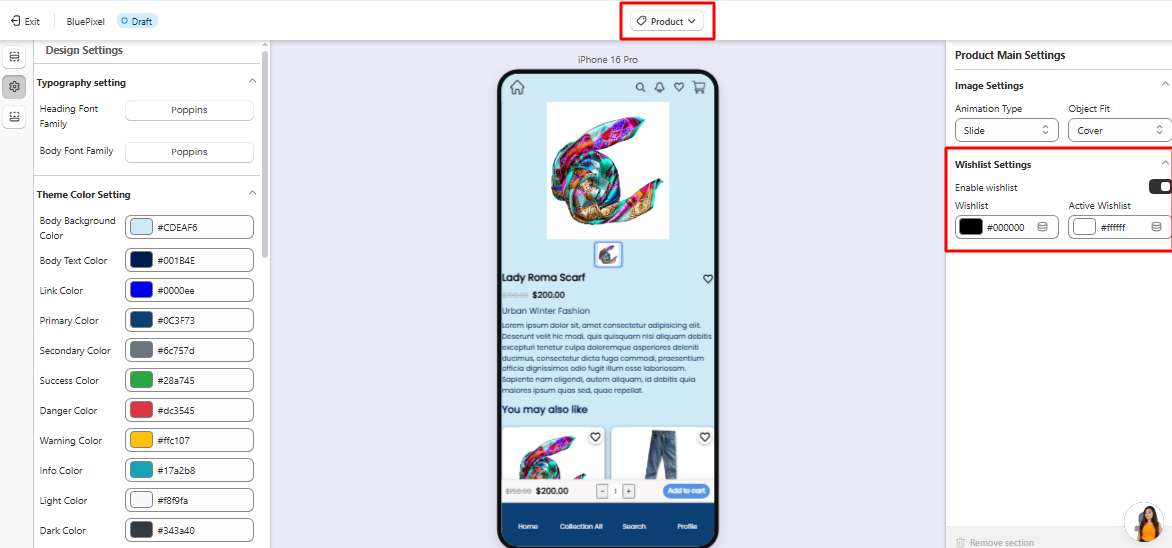
### Wishlist Settings
These options control the wishlist functionality on the product page.
**Enable Wishlist**\
Allows customers to add products to their wishlist.
**Wishlist Color**\
Defines the default icon color.
**Active Wishlist Color**\
Defines the icon color when a product is added to the wishlist.
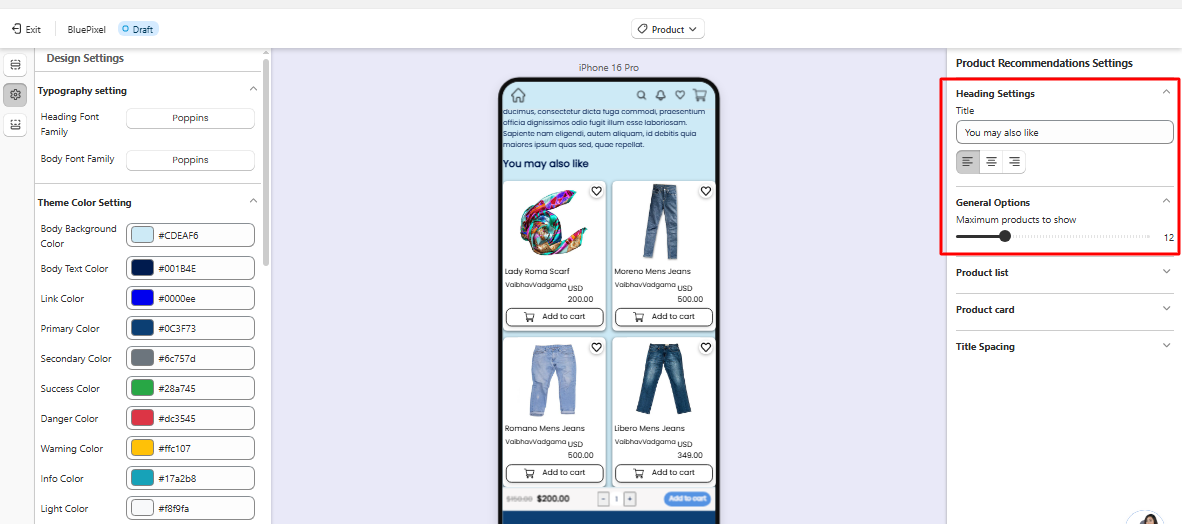
### Product Recommendations Settings
This section allows you to display recommended products on the product page.
#### Heading Settings
Defines the title shown above the recommended products section.\
Example: **“You may also like”**
#### General Options
**Maximum Products to Show**\
Controls how many recommended products appear.\
Example: 12
### Product List Layout
These settings control how recommended products are displayed.
**Layout**\
Defines the layout style. Example: *Grid*
**Columns**\
Number of products shown per row. Example: `2`
**Gap**\
Spacing between product cards.
**Padding Inline / Padding Block**\
Controls horizontal and vertical spacing around the product list.
### **Product Card Settings**
These settings control the design and elements inside each product card.
**Card Style**: Choose the product card design style (e.g., Type A).
\
**Background**: Defines the background style of the product card.
\
**Shadow**: Enable or disable shadow around the product card.
\
**Wishlist Visibility**: Option to hide the wishlist icon from product cards.
### Product Image
Controls how images appear inside product cards.
* Option to hide the product image
* **Object Fit** defines how images scale (e.g., *Contain*)
* **Height** controls image display height
### Product Information
Controls the visibility and colors of product details.
**Product Title**
* Option to hide the title
* Title text color customization
**Price**
* Option to hide the price
* Price color customization
**Compare-at Price**
* Option to hide the original price
* Custom color setting
**Vendor Name**
* Option to show or hide the vendor name
* Vendor text color customization
### Add to Cart Button
Controls the appearance and behavior of the **Add to Cart** button.
Options include:
* Hide/show the button
* Button background color
* Text color
* Full-width button option
* Custom icon support (.png recommended size **50×50px**)
### Similar Products Button
Allows displaying a **Similar Products** option on product cards.
Settings include:
* Show/hide option
* Custom icon support (.png **50×50px recommended**)
#### Variant Picker Settings
The Variant Picker allows customers to select product options such as size, color, material, or other variants before adding a product to the cart.
### Title
**Choose Your Options**
This is the heading displayed above the variant selection area. You can customize the text to match your store's branding and style.
### Text Settings
#### Text Color
Controls the color of the variant option labels and related text.
**Example:** #000000(Black)
#### Text Font Size
Determines the size of the text displayed within the variant picker.
**Example:** 15px
### Active Option Style
These settings control the appearance of the currently selected variant option.
#### Active Background
Sets the background color of the selected option.
**Example:** Primary color from your app theme.
#### Active Text Color
Defines the text color displayed on the selected option.
**Example:** #FFFFFF (White)
### Inactive Option Style
These settings control the appearance of variant options that are not currently selected.
#### Inactive Background
Sets the background color of unselected options.
**Example:** #FFFFFF (White)
#### Inactive Text Color
Defines the text color displayed on unselected options.
**Example:** #00000 (Black)
#### Inactive Border Color
Sets the border color around unselected variant options.
**Example:** #DDDDD (Light Gray)
### Cart Button Settings
These settings customize the appearance of the Add to Cart button.
#### Button Text Color
Defines the color of the button label text.
**Example:** #FFFFFF (White)
#### Button Icon Color
Sets the color of any icons displayed within the cart button.
**Example:** #FFFFFF(White)
#### Button Border Radius
Controls the roundness of the button corners.
**Example:** 8px
* Lower values create sharper corners.
* Higher values create more rounded corners.
### Option Border Radius
Defines the corner roundness of variant option buttons.
**Example:** 4px
* Lower values create square corners.
* Higher values create rounded corners.
### General Settings
#### Title Text Color
Controls the color of the Variant Picker title.
**Example:** #000000 (Black)
#### Title Font Size
Determines the size of the Variant Picker title text.
**Example:** 20px
### Popup Background
#### Close Icon Color
Defines the color of the close (X) icon displayed in the variant selection popup.
Choose a color that provides sufficient contrast against the pop-up background to ensure visibility and accessibility.
### Title Spacing
Controls spacing around product titles.
**Padding Inline** – horizontal spacing\
**Padding Block** – vertical spacing
Using these settings, you can fully control how products and recommendations appear on the product page, helping create a visually consistent and user-friendly shopping experience.
### Recently Viewed Products
The **Recently Viewed Products** section displays products that customers have previously viewed while browsing your store. It gives customers a convenient way to **quickly return to products they were interested in** without having to search for them again.
For example, if a customer views several products and then opens another product, the **Recently Viewed Products** section can display those previously viewed items below the product details. Customers can simply tap a product to revisit it.
This feature makes product discovery easier and helps customers **continue their shopping journey without losing track of products they have already explored**.
## 4. Profile Page Settings
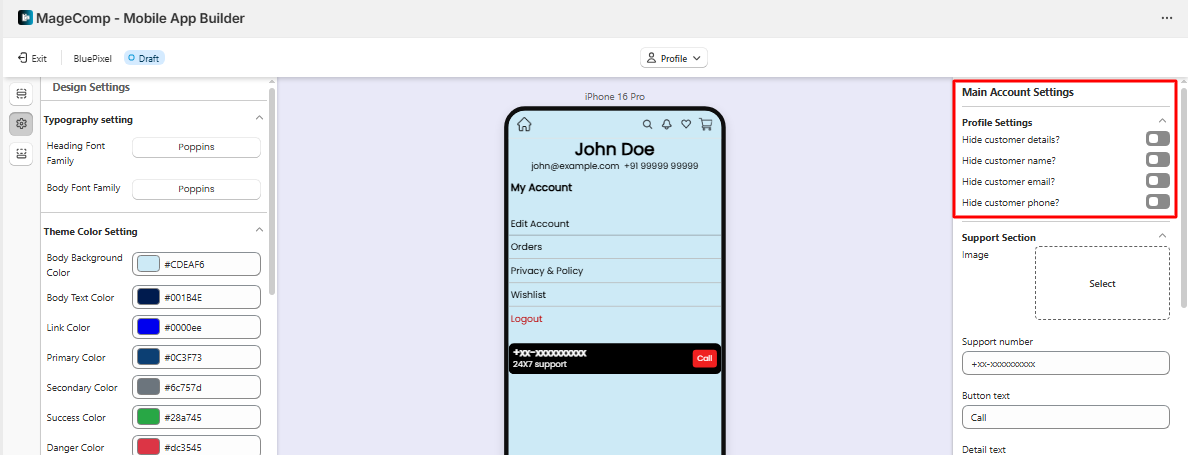
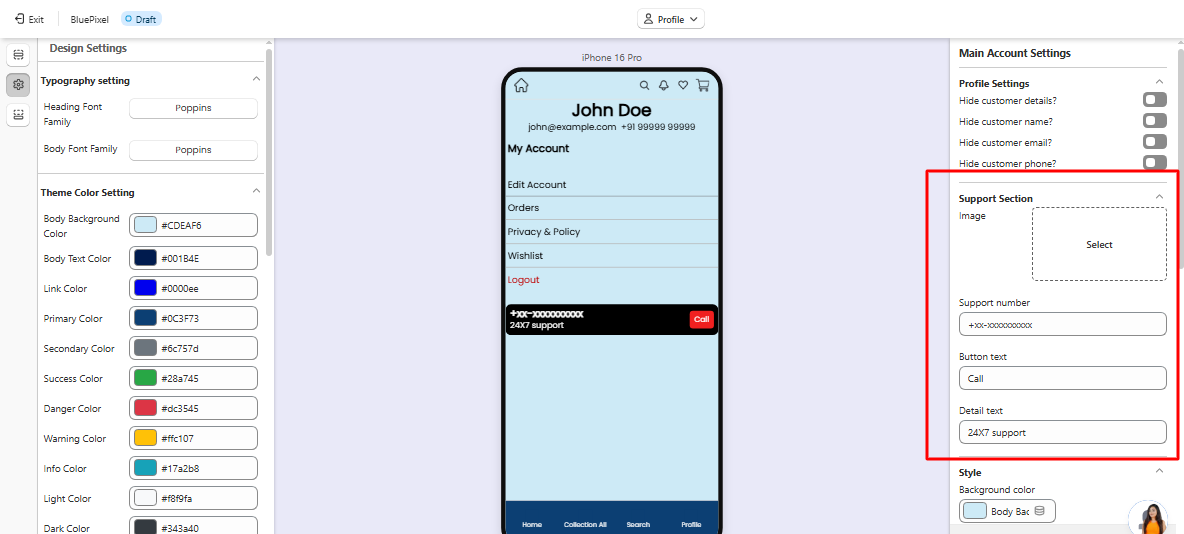
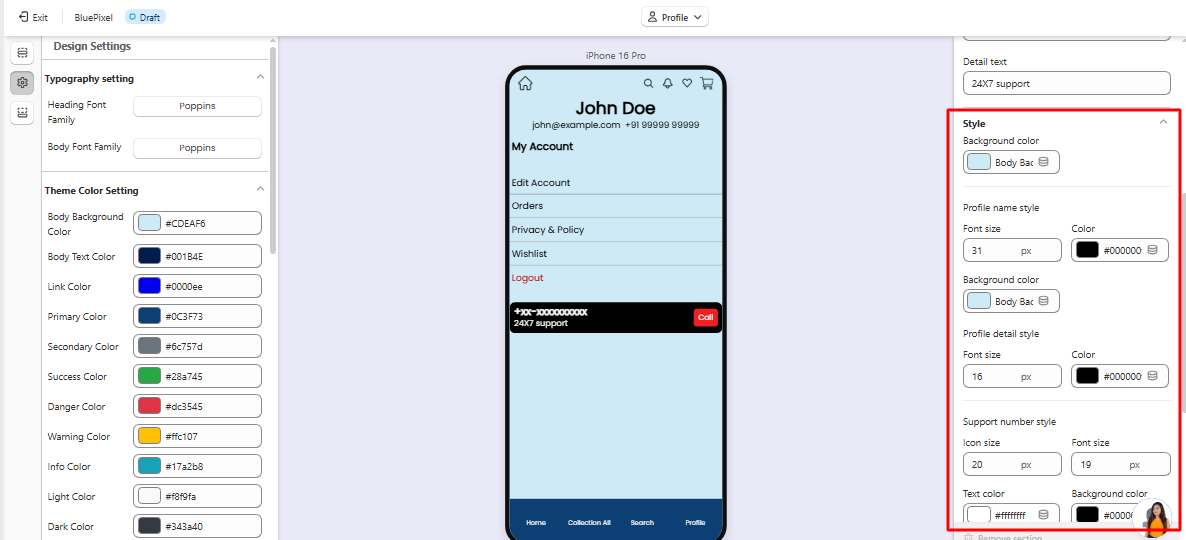
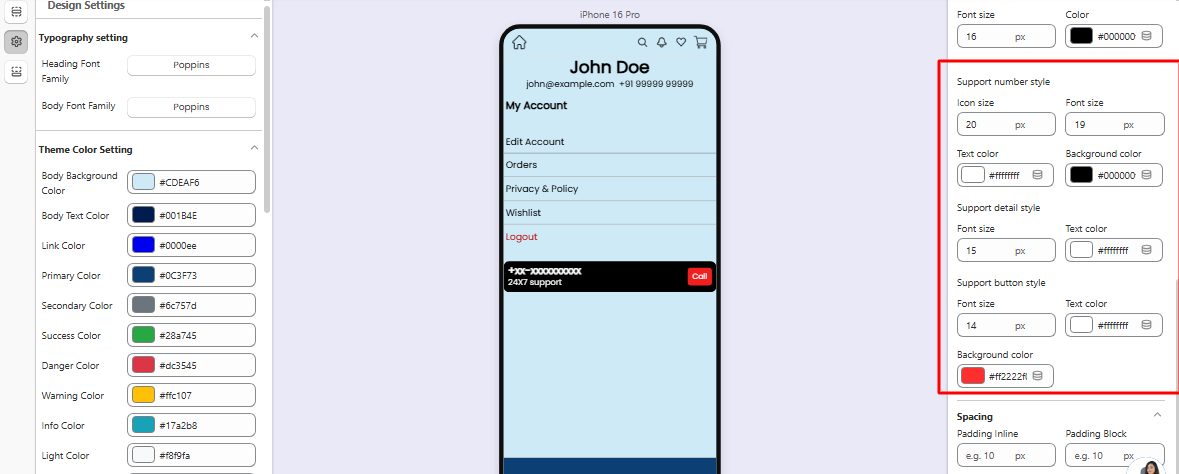
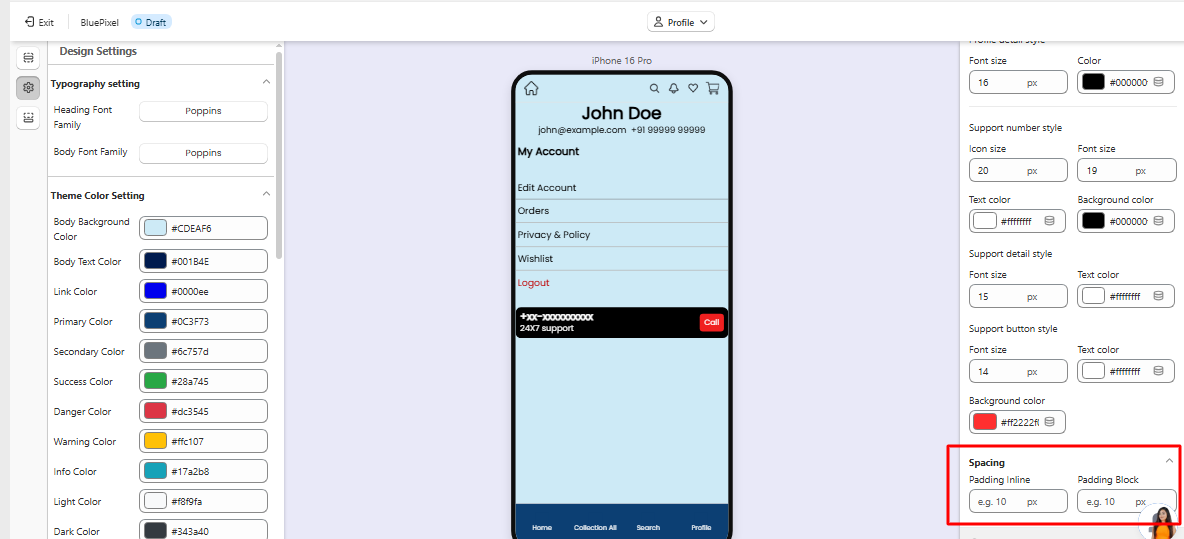
The **Profile Page Settings** allow you to customize the layout, appearance, and visible elements of the customer profile section in the mobile app. This section helps merchants control how customers access their personal information, orders, addresses, and account-related options.
These settings ensure the profile page remains organized, easy to navigate, and aligned with your app’s design.
### Profile Header Settings
This section controls the appearance of the **top area of the profile page**.
**Profile Image**\
Displays the customer’s profile picture or default avatar.
**Customer Name**\
Shows the logged-in customer’s name.
**Email or Account Information**\
Displays the customer’s registered email or account details.
These elements help customers quickly identify their account information.
### Account Options
This section defines the **main menu items available inside the profile page**. Common options include:
* **My Orders** – Allows customers to view their order history and order details.
* **My Addresses** – Lets customers manage saved shipping and billing addresses.
* **Wishlist** – Displays products saved by the customer for later purchase.
* **Account Details** – Allows customers to update personal information.
* **Notifications** – Shows app notifications related to orders or promotions.
Merchants can control which options are visible to customers.
### Layout Settings
These settings control the **visual layout of the profile page menu items**.
**Layout Type**\
Defines how profile options appear (for example, list or grid layout).
**Spacing**\
Controls the space between menu items to maintain a clean and readable interface.
**Padding**\
Defines the spacing around profile sections for better visual structure.
### Icon Settings
Icons help users quickly recognize profile menu options.
* Merchants can assign **custom icons** to each profile option.
* Recommended icon format: **PNG**
* Recommended size: **50 × 50 px**
### Visibility Controls
Each profile section can be **shown or hidden** depending on your store's requirements.
For example:
* Hide the wishlist if the feature is disabled
* Hide addresses if not required
* Hide notifications if not used
This allows merchants to keep the profile page clean and focused.
Using the **Profile Page Settings**, you can customize how customers access and manage their account information within the mobile app, ensuring a simple and user-friendly account management experience.
Added email support on the customer profile page, providing a more complete customer profile experience.
### Email Support
Added an **Email Support** option to the **Customer Profile page**, allowing customers to contact the support team directly via email. This provides customers with an additional support channel alongside the existing **mobile number support**, making it easier for them to get assistance from within the app.
## 5. Collection Page Settings
The Collection Page Settings allow you to customize the appearance and functionality of your collection listing page, helping customers browse products more efficiently.
## General Settings
### Design Options
#### Type A and Type B
Select the layout style for the collection page.
Different design types may change the arrangement and visual presentation of collection categories and products.
## Search Bar Settings
The Search Bar helps customers quickly find collections or categories.
#### Show Search Bar
Enable or disable the search bar on the collection page.
#### Show Filter Button
Display a filter button alongside the search bar to allow customers to refine their browsing experience.
#### Border Radius
Controls the roundness of the search bar corners.
**Example:** 8px
#### Border Width
Defines the thickness of the search bar border.
**Example:** 1px
#### Placeholder Text
The text displayed inside the search field before a customer starts typing.
**Example:** Search by categories
#### Background Color
Sets the background color of the search bar.
#### Border Color
Defines the color of the search bar border.
#### Text & Icon Color
Controls the color of the search text and search icon.
#### Filter Icon Color
Defines the color of the filter icon.
#### Upload Icon
Upload a custom transparent PNG search icon.
**Recommended Format:** PNG with transparent background.
#### Width
Controls the width of the uploaded search icon.
**Example:** 20px
#### Height
Controls the height of the uploaded search icon.
**Example:** 20px
## Collection List Settings
These settings control the appearance of the collection/category tabs.
#### Border Radius
Defines the corner roundness of collection items.
**Example:** `50px`
#### Image Object Fit
Controls how collection images fit within their containers.
**Cover**
The image fills the container while maintaining aspect ratio. Portions of the image may be cropped.
**Contain**
The entire image remains visible within the container. Empty space may appear around the image.
#### Collections Limit
Maximum number of collections loaded from Shopify Admin.
**Example:** `10`
#### Pane Background
Sets the background color of the collection navigation area.
#### Active Bar Color
Defines the highlight color of the currently selected collection.
#### Label Font Size
Controls the size of collection names.
#### Label Text Color
Sets the color of collection labels.
## Product List Settings
Controls the layout of products displayed within a collection.
#### Column
Determines the number of product cards displayed per row.
**Example:** `2 Columns`
#### Gap
Controls the spacing between product cards.
#### Padding Inline
Sets the left and right spacing around the product grid.
#### Padding Block
Sets the top and bottom spacing around the product grid.
## Product Card Settings
Customize the appearance of individual product cards.
### Card Design
#### Design Options
Choose the product card layout style.
#### Background
Controls the background appearance of product cards.
#### Apply Shadow
Adds a shadow effect around product cards.
#### Hide Border
Removes the border from product cards.
#### Border Width
Defines the card border thickness.
#### Border Color
Sets the color of the product card border.
#### Hide Wishlist
Hide or show the wishlist button.
## Product Image Settings
#### Hide Product Image
Hide or display the product image.
#### Object Fit
**Contain**
Displays the entire image without cropping.
**Cover**
Fills the image container and may crop portions of the image.
#### Height
Controls the image container height.
**Example:** 150px
## Product Title Settings
#### Hide Title
Hide or display the product title.
#### Title Text Color
Defines the color of the product title.
## Price Settings
#### Hide Price
Hide or display product pricing.
#### Price Color
Sets the color of the product price.
#### Hide Compare-at Price
Hide or display the original (strikethrough) price.
#### Compare-at Price Color
Defines the color of the compare-at price.
#### Hide Vendor Name
Hide or display the vendor/brand name.
#### Vendor Text Color
Sets the color of the vendor name.
## Add to Cart Settings
#### Hide Add to Cart Button
Hide or display the Add to Cart button.
#### Background
Sets the background color of the button.
#### Text Color
Defines the color of button text.
#### Full Width Button
Expands the Add to Cart button to occupy the full width of the product card.
#### Upload Icon
Upload a custom Add to Cart icon.
**Recommended Size:** 50 × 50 px PNG
## Similar Products Settings
#### Hide Similar Products
Hide or display the Similar Products option.
#### Upload Icon
Upload a custom icon for the Similar Products feature.
**Recommended Size:** 50 × 50 px PNG
## Variant Picker Settings
The Variant Picker allows customers to select product options such as size, color, material, or other variants.
### Title
Defines the heading displayed above variant options.
**Example:** Choose your option
#### Text Color
Sets the color of variant option labels.
#### Text Font Size
Controls the size of variant option text.
### Active Option Style
#### Active Background
Sets the background color of the selected option.
#### Active Text Color
Defines the text color of the selected option.
### Inactive Option Style
#### Inactive Background
Sets the background color of unselected options.
#### Inactive Text Color
Defines the text color of unselected options.
#### Inactive Border Color
Controls the border color of unselected options.
### Cart Button Settings
#### Button Text Color
Defines the text color of the Add to Cart button.
#### Button Icon Color
Controls the color of icons displayed within the Add to Cart button.
#### Button Border Radius
Defines the roundness of the button corners.
#### Option Border Radius
Controls the corner roundness of variant option buttons.
### General
#### Title Text Color
Sets the color of the Variant Picker title.
#### Title Font Size
Defines the size of the Variant Picker title text.
### Popup Background
#### Close Icon Color
Controls the color of the close (X) icon displayed in the Variant Picker popup.
Choose a color that provides sufficient contrast against the pop-up background for better visibility and accessibility.
## 5. Design Settings
The **Design Settings** section allows you to customize the visual appearance of your mobile app directly from the admin panel. Using these settings, you can control typography, theme colors, buttons, and input field styles to match your brand identity and create a consistent user experience across the entire app.
These settings help merchants design their app without needing any coding knowledge.
## Typography Settings
Take full control over your app's visual identity by customizing the fonts used throughout the application. Configure different font families for various UI elements to create a consistent and branded experience.
* **Heading Font Family** – Customize the font used for major headings and section titles across the app.
* **Title Font Family** – Set the font style for product titles, page titles, and important content headings.
* **Subtitle Font Family** – Define the font used for subtitles and secondary headings to maintain visual hierarchy.
* **Text Font Family** – Choose the font for general body text, descriptions, and other content throughout the app.
* **Button Font Family** – Customize the font used in buttons and call-to-action elements for a cohesive look and feel.
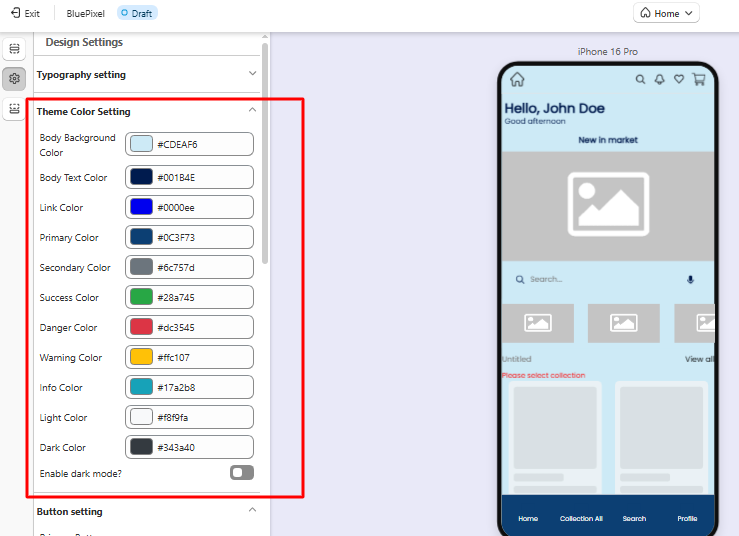
### Theme Color Settings
The **Theme Color Settings** allow you to define the main colors used throughout the mobile app interface. These colors ensure consistent branding and improve visual appeal.
#### Body Background Color
Defines the background color used across most app screens.
Example: #CDEAF6
#### Body Text Color
Controls the default text color used for general content.
Example: #001B4E
#### Link Color
Defines the color used for clickable links inside the app.
Example: #0000EE
#### Primary Color
The **primary color** represents the main brand color of the app and is commonly used for:
* Primary buttons
* Highlights
* Important UI elements
Example: #0C3F73
#### Secondary Color
Used as a supporting color for UI components and less prominent actions.
Example: #6C757D
#### Success Color
Indicates successful actions such as:
* Order completion
* Successful form submission
Example: #28A745
#### Danger Color
Used for warnings, errors, or destructive actions.
Example: #DC3545
#### Warning Color
Used to show caution messages or alerts.
Example: #FFC107
#### Info Color
Used for informational messages or notices.
Example: #F8F9FA
#### Light Color
Used for light UI backgrounds and subtle elements.
Example: #17A2B8
#### Dark Color
Used for dark elements such as headers or strong UI contrast.
Example: #343A40
#### Enable Dark Mode
When enabled, the app will support **Dark Mode**, allowing users to view the interface with darker colors, which can reduce eye strain and improve readability in low-light environments.
## Button Settings
Button settings allow you to customize the appearance of buttons used across the mobile app.
There are two types of buttons available:
1. **Primary Button**
2. **Secondary Button**
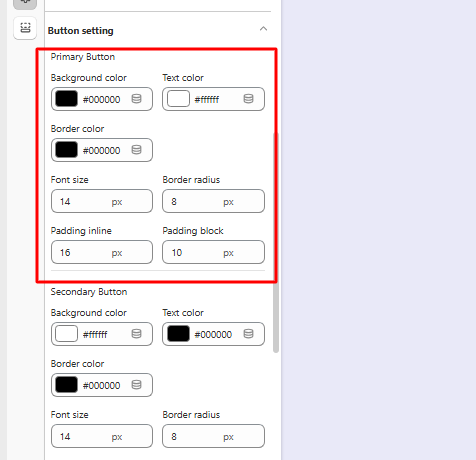
#### 1. Primary Button
Primary buttons represent the **main action** a user should take on a screen (e.g., Add to Cart, Checkout).
#### Available Settings
**Background Color**\
Defines the background color of the button.
Example: #000000
**Text Color**\
Defines the color of the button label text.
Example: #ffffff
**Border Color**\
Defines the border color of the button.
Example: #000000
**Font Size**\
Controls the text size inside the button.
Example: 14
**Border Radius**\
Controls how rounded the button corners appear.
Example: 8
**Padding Inline**\
Defines the horizontal spacing inside the button.
Example: 16
**Padding Block**\
Defines the vertical spacing inside the button.
Example: 10
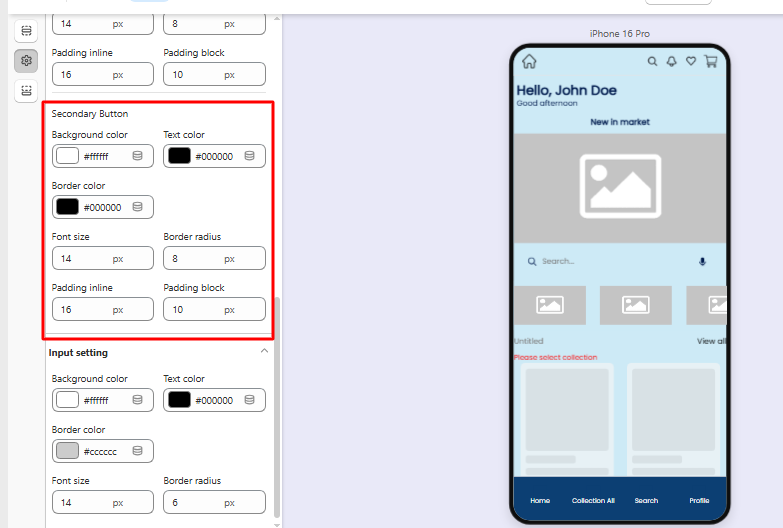
#### 2. Secondary Button
Secondary buttons represent **less important or alternative actions**.
#### Available Settings
**Background Color**\
Defines the background color.
Example: #000000
**Text Color**\
Defines the text color.
Example: #ffffff
**Border Color**\
Defines the button border color.
Example: #000000
**Font Size**\
Controls the button text size.
Example: 14
**Border Radius**\
Defines the roundness of button corners.
Example: 8
**Padding Inline**\
Defines horizontal spacing inside the button.
Example: 16
**Padding Block**\
Defines vertical spacing inside the button.
Example: 10
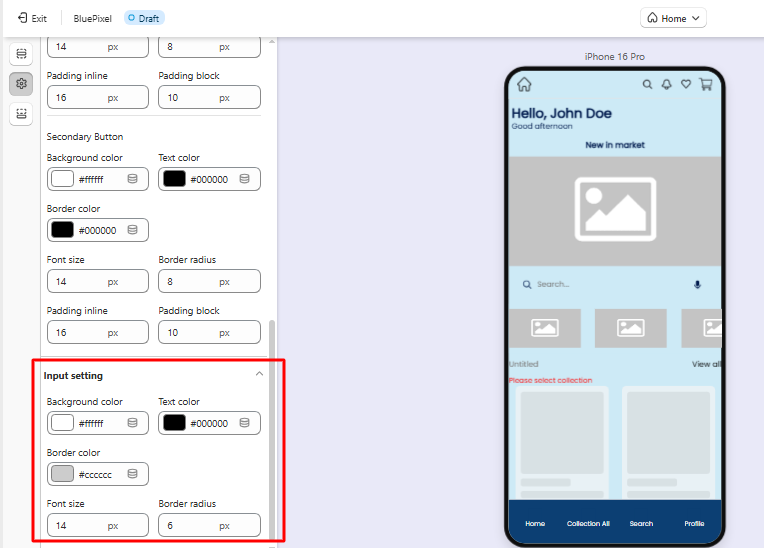
## Input Field Settings
The **Input Settings** allow you to customize the design of form fields used throughout the mobile app, such as:
* Login fields
* Search bars
* Address fields
* Checkout forms
#### Available Settings
**Background Color**\
Defines the background color of the input field.
Example: #ffffff
**Text Color**\
Defines the color of the text entered by users.
Example: #000000
**Border Color**\
Defines the border color around input fields.
Example: #cccccc
**Font Size**\
Controls the size of text inside the input field.
Example: 14
**Border Radius**\
Controls how rounded the input field corners appear.
Example: 6
## 6. Design Menu Settings
The **Design Menu Settings** allow you to customize the appearance and elements of the app’s **Header** and **Bottom Navigation Menu**. These settings help you control the layout, icons, colors, and visibility of important navigation features in your mobile app.
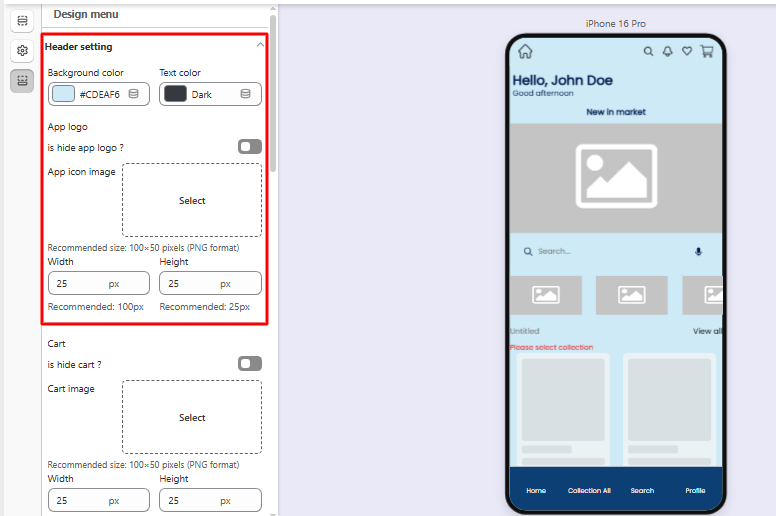
### Header Settings
The **Header** is the top section of the app where important navigation elements such as the logo, search, cart, and notifications appear.
#### Header Colors
**Background Color**\
Defines the background color of the header area.
Example: #CDEAF
**Text Color**\
Controls the color of text elements displayed in the header.
### App Logo
Controls how the store logo appears in the header.
**Hide App Logo**\
Option to hide or display the app logo.
**App Icon Image**\
Upload your store logo.
Recommended format: **PNG**\
Recommended size: **100 × 50 px**
**Width / Height**\
Allows you to adjust the display size of the logo within the header.
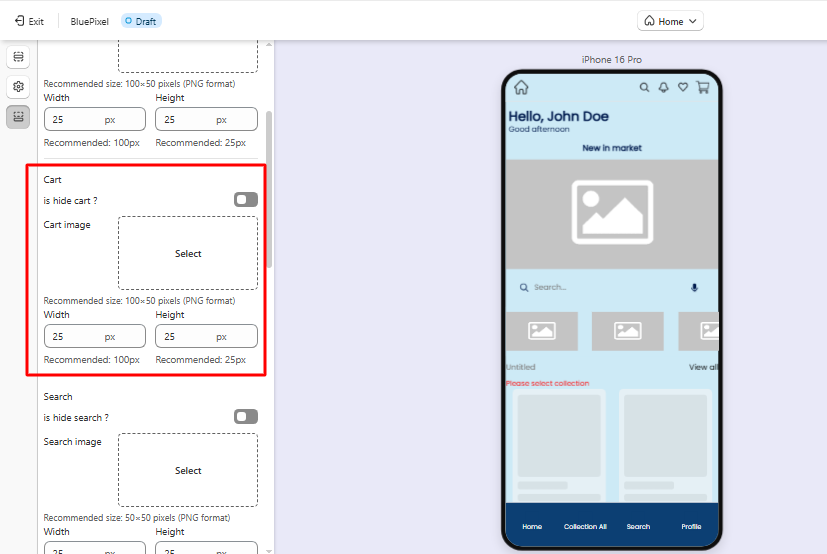
### Cart Icon
Controls the shopping cart icon displayed in the header.
**Hide Cart**\
Option to hide or display the cart icon.
**Cart Image**\
Upload a custom cart icon.
Recommended format: **PNG**\
Recommended size: **100 × 50 px**
**Width / Height**\
Controls the display size of the cart icon.
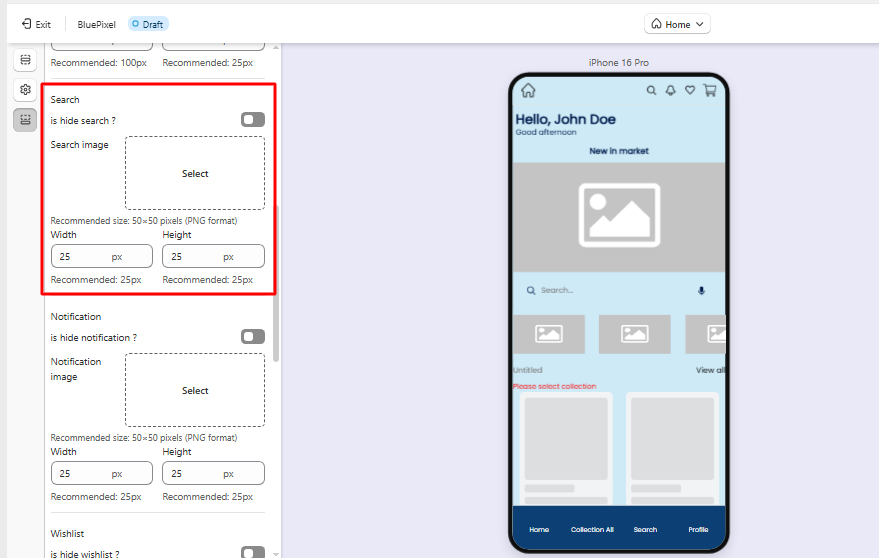
### Search Icon
Controls the search feature in the header.
**Hide Search**\
Option to hide or display the search icon.
**Search Image**\
Upload a custom search icon.
Recommended format: **PNG**\
Recommended size: **50 × 50 px**
**Width / Height**\
Adjust the icon display size.
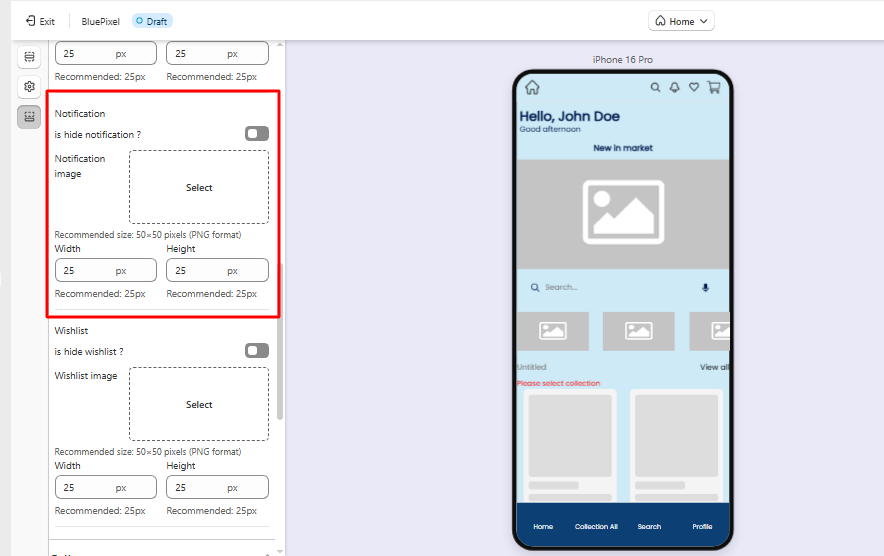
### Notification Icon
Controls the notification icon used for app alerts and updates.
**Hide Notification**\
Option to hide or display the notification icon.
**Notification Image**\
Upload a custom notification icon.
Recommended format: **PNG**\
Recommended size: **50 × 50 px**
**Width / Height**\
Adjust the icon display size.
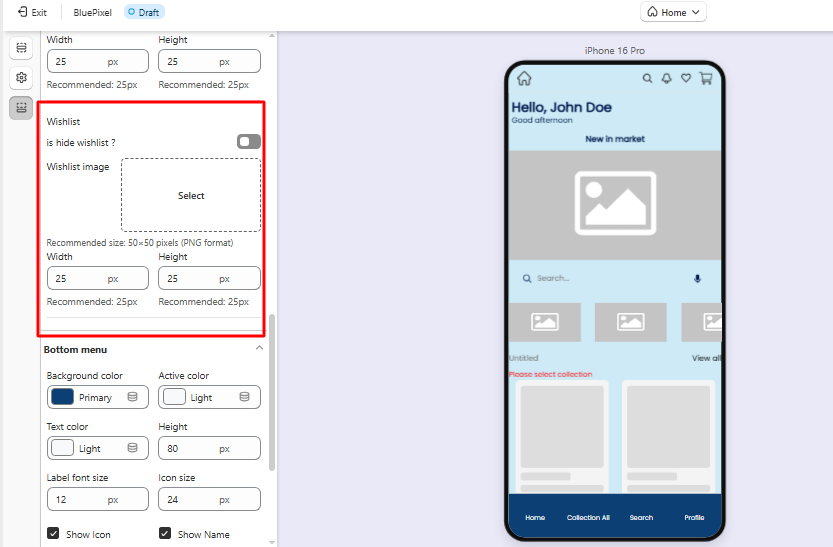
### Wishlist Icon
Controls the wishlist icon shown in the header.
**Hide Wishlist**\
Option to hide or display the wishlist icon.
**Wishlist Image**\
Upload a custom wishlist icon.
Recommended format: **PNG**\
Recommended size: **50 × 50 px**
**Width / Height**\
Adjust the icon display size.
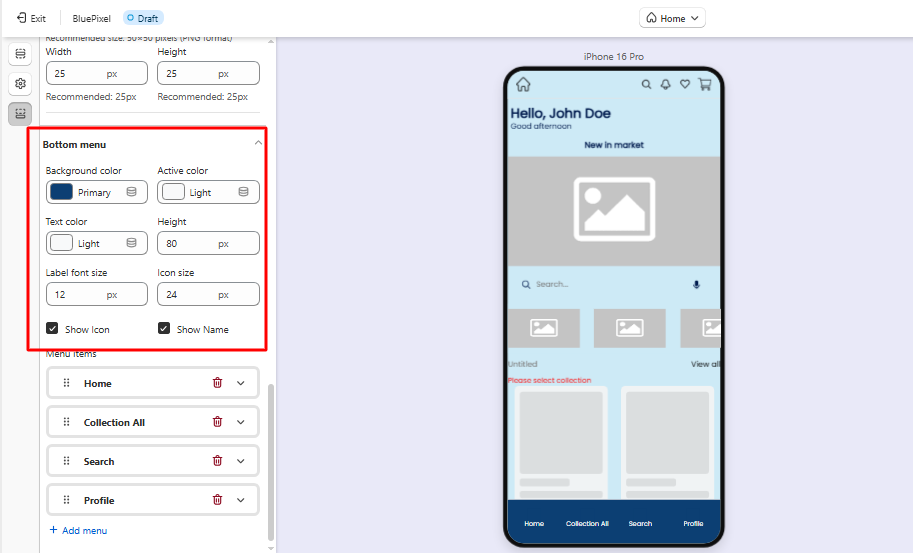
### Bottom Menu Settings
The **Bottom Menu** is the navigation bar displayed at the bottom of the app, allowing customers to quickly access important sections.
#### Menu Appearance
**Background Color**\
Defines the background color of the bottom menu.
**Active Color**\
Defines the color of the active or selected menu item.
**Text Color**\
Controls the color of menu labels.
**Height**\
Defines the height of the bottom navigation bar.
**Label Font Size**\
Controls the text size of menu labels.
**Icon Size**\
Defines the size of icons displayed in the menu.
### Menu Display Options
**Show Icon**\
Displays icons for each menu item.
**Show Name**\
Displays labels below icons.
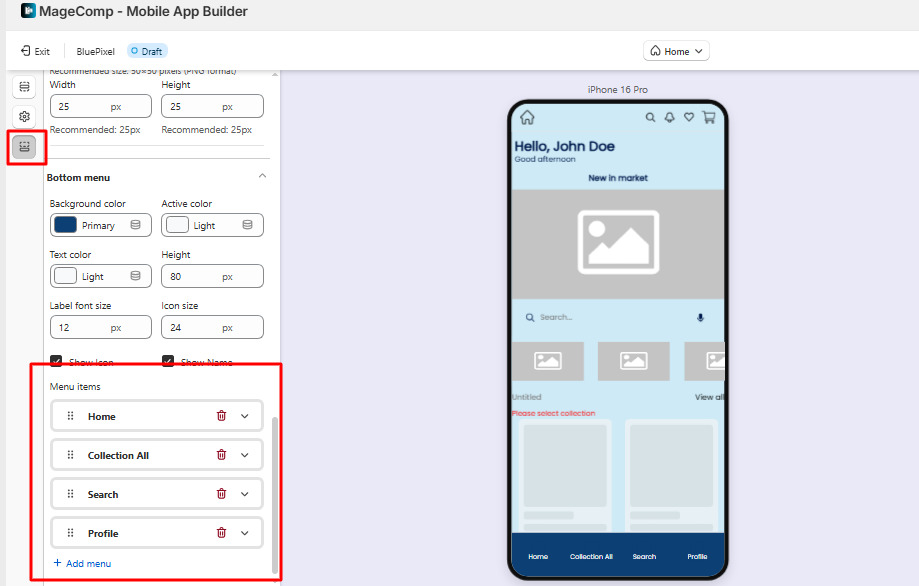
### Menu Items
Merchants can configure which sections appear in the bottom navigation menu.
Common examples include:
* **Home**
* **All Collections**
* **Search**
* **Profile**
* **Cart**
* **Wishlist**
You can customize these menu items based on the navigation structure you want to provide to your customers.
### **New Side Drawer Navigation**
Provide customers with quick access to account information and important app sections through a customizable side drawer menu with support for profile headers, avatars, and configurable menu items.
For a feature list:
* Enable or disable the side drawer navigation.
* Customize the profile header with name, email, and avatar.
* Provide quick access to account-related pages and important app sections.
* Improve navigation and overall user experience with a modern menu layout.
**Create Home Page Layouts and Schedule Them for Future Publishing**
\
Create multiple home page layouts for your mobile app and schedule them to be published automatically at a specific date and time.
This helps you plan seasonal campaigns, sales events, product launches, and promotional updates without requiring manual changes when the campaign goes live.
**Buy 2 Get 1 Promotional Design Support**
\
Create attractive **Buy 2 Get 1 Free** campaigns with a dedicated bundle layout featuring customizable headings, product configurations, and card designs to effectively showcase promotional offers and boost conversions.