> For the complete documentation index, see [llms.txt](https://magecomp.gitbook.io/shopify/llms.txt). Markdown versions of documentation pages are available by appending `.md` to page URLs; this page is available as [Markdown](https://magecomp.gitbook.io/shopify/apps/codfy-cash-on-delivery/cod-fee-setting.md).
# COD Fee Setting
If you want to charge your customers for the cash-on-delivery services, then you must follow these steps:
**Step #1**
Go to **Settings** ➤ **Shipping and delivery**
**Step #2**
Navigate to **General shipping rates** and open the **General** field.
**Step #3**
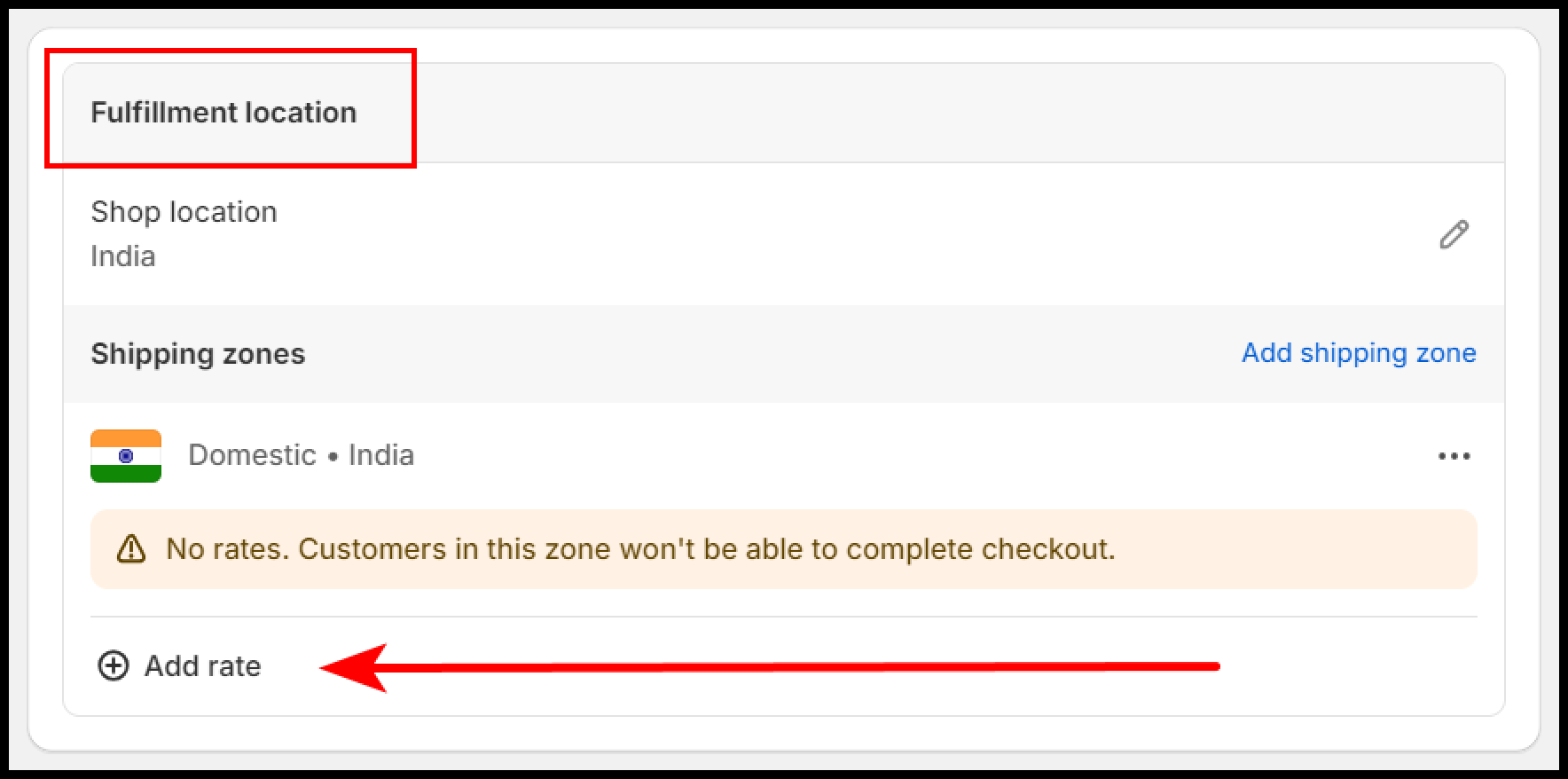
Scroll down to **Fulfillment location** and select the **+ Add rate** button.
**Step #4**
* **Rate type -** Select the **use flat rate** option.
* **Shipping Rate -** Select the **Custom** option.
* **Custom rate name -** Set the name of your rate.
* **Custom delivery description -** Set any description if needed. The field is optional.
* **Price -** Set the price of your shipping rate.
* Select the **Add conditional pricing** option and select the **Based on order price** option.
* Set the minimum and maximum order price on which you want to implement this shipping charge.
* You can see the preview of the charge also.
Once you are done with the configurations, **Save** your changes and proceed.
Our app also allows you to enable **Cash on Delivery (COD)** as a payment option in your Shopify checkout and optionally charge a COD fee. Here’s how it works:
#### 1. **COD Service Status**
* **Success / Active**: This indicates that COD is successfully enabled in your app.
* **Enable Cash on Delivery for Shopify Checkout**: Turn this on to allow customers to select COD at checkout.
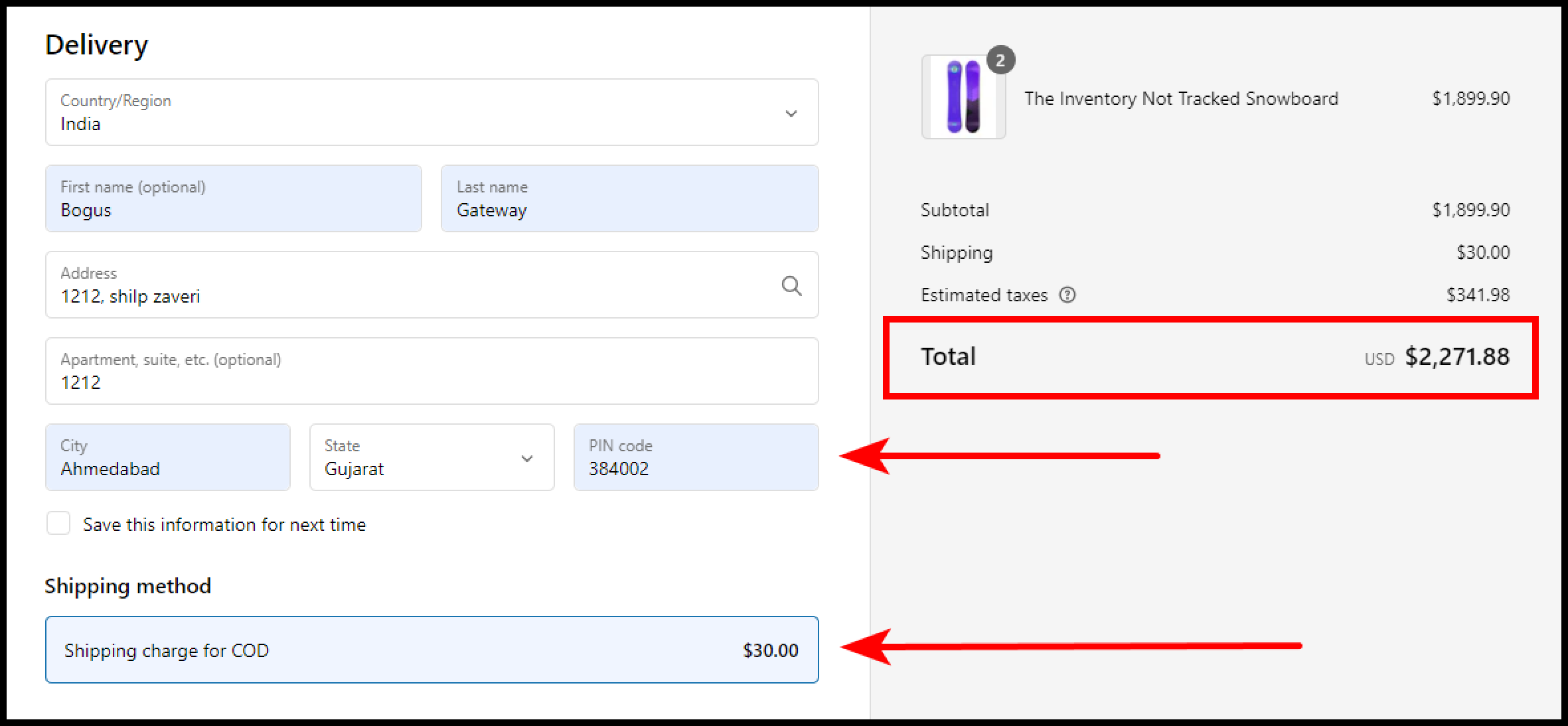
* The available **shipping rates** will also be displayed directly in the COD form. Customers can view the available shipping options and select their preferred shipping method while placing their Cash on Delivery order.
**Important:**\
Ensure you have created a **Shipping Rate** in Shopify with the exact name you specify in the app (e.g., “Cash on Delivery”). The app matches this name to apply COD logic during checkout.
#### 2. COD Instant Pop-up and Fee Settings
The **COD Instant Pop-up** lets customers see a confirmation message when they choose **Cash on Delivery** at checkout. You can also display any COD fees directly in this pop-up.
**How it works:**
* **Popup Status – Success / Active:** The pop-up is enabled and functioning correctly.
* **Enable COD fees for this pop-up:** Turn this option on if you want the COD fee to appear in the pop-up.
**COD Fee Settings:**
* **COD Fee Type:** Choose how the fee is calculated. Currently, **fixed amounts** and **percentages** are supported.
* **COD Fee Value:** Set the exact amount to charge as a COD fee (e.g., 0 if no fee).
* **Displayed Fee Name:** This is how the fee will appear to customers in the order summary (e.g., “COD Fee”).
**Example:**\
If you set a fixed COD fee of 50 with the displayed fee name “COD Fee,” customers will see: **COD Fee – ₹50** in the pop-up and in their order summary, giving full transparency on any additional charges.